12 Subtitles
Section 12.2 describes subtitles and the audio and subtitles menus as they are deployed today. The sections after it are the target, subtitles and the audio and subtitles panel as they are meant to be, and section 12.12 lists every difference between the two as a numbered change. Only a change the owner has approved is built, one change at a time; anything no change names stays as it is deployed.
The chapter covers how subtitles look over the picture, the panel in which people pick a title's audio and its subtitles, what switches on by itself, and the setting. The player around them, with its control bar and its other menus, is in chapter 11.
12.1 Purpose
Section titled “12.1 Purpose”Subtitles are read in a second, over a moving picture, sometimes from across the room. They are plain and steady: the same look for every title, covering as little of the picture as they can, and only one at a time. The web, the TV and the phone apps show them the same way.
People pick what they hear and what they read in one place, the audio and subtitles panel. One press opens it, each track is named by its language and the few words that tell it from the others, and a pick shows at once.
12.2 As deployed
Section titled “12.2 As deployed”This section says what the four apps do as of 6 November 2026: the web as the public demo showed it that day, on the same build as production, and the apps as their code had them that day. The phone app, Android TV and the Samsung TV are described from their code until screenshots of them are taken. The Samsung TV app isn't released yet.
12.2.1 The web
Section titled “12.2.1 The web”Figures 12.1 to 12.6 are screenshots of the web's player playing Tears of Steel, which has subtitles in 18 languages and one audio track. The demo's server names no subtitle languages, and the subtitle setting, at its first value, and the browser's language are both English. Figure 12.1 shows the subtitles menu as it opens, on a computer.
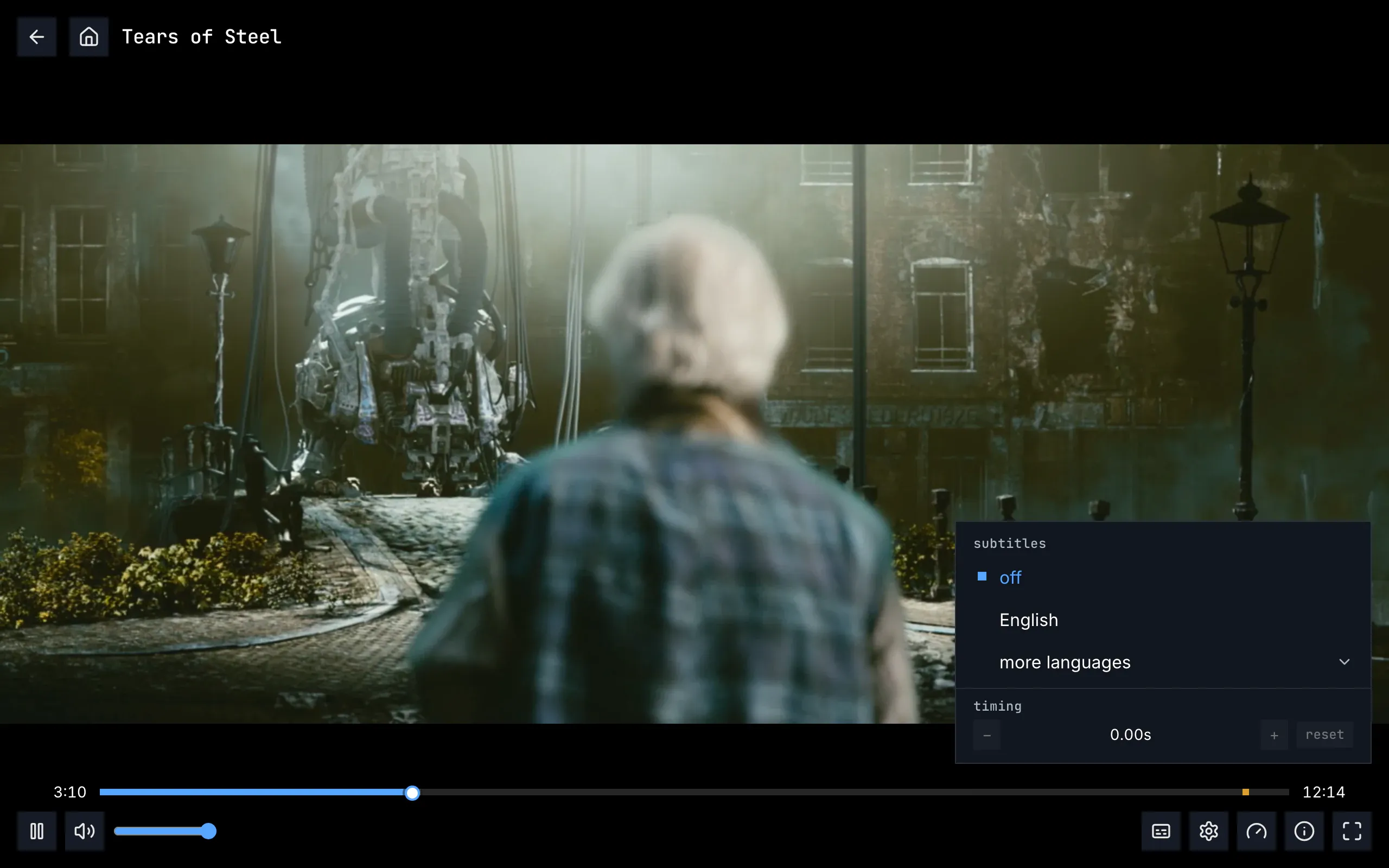
Figure 12.1: The web's subtitles menu as deployed on 6 November 2026, on a computer, at 1280 × 800.
- The top of the menu: the header and off. “subtitles” in the monospace face, and off under it, picked: blue, with a small filled square before it. The audio is English, the language the subtitle setting names, so no subtitle came on by itself.
- English, the only language on top. As the server names no languages, the top holds the person's own: the subtitle setting's, the audio setting's and the browser's, here English all three.
- more languages, with an arrow pointing down at its right end, holds the other 17.
- timing, at the foot under a line: a minus, “0.00s”, a plus and reset, all dimmed while subtitles are off.
- The bottom right: the subtitles button, a caption box, the first of five before the gear, the gauge, the “i” in a circle and the four corners. The menu stands above the whole control bar, the seek bar included, at its right end, 384 px wide.
A pick turns that subtitle on in place of the one that was, and the menu stays open; a click outside it or Esc closes it. Figure 12.2 shows more languages opened.
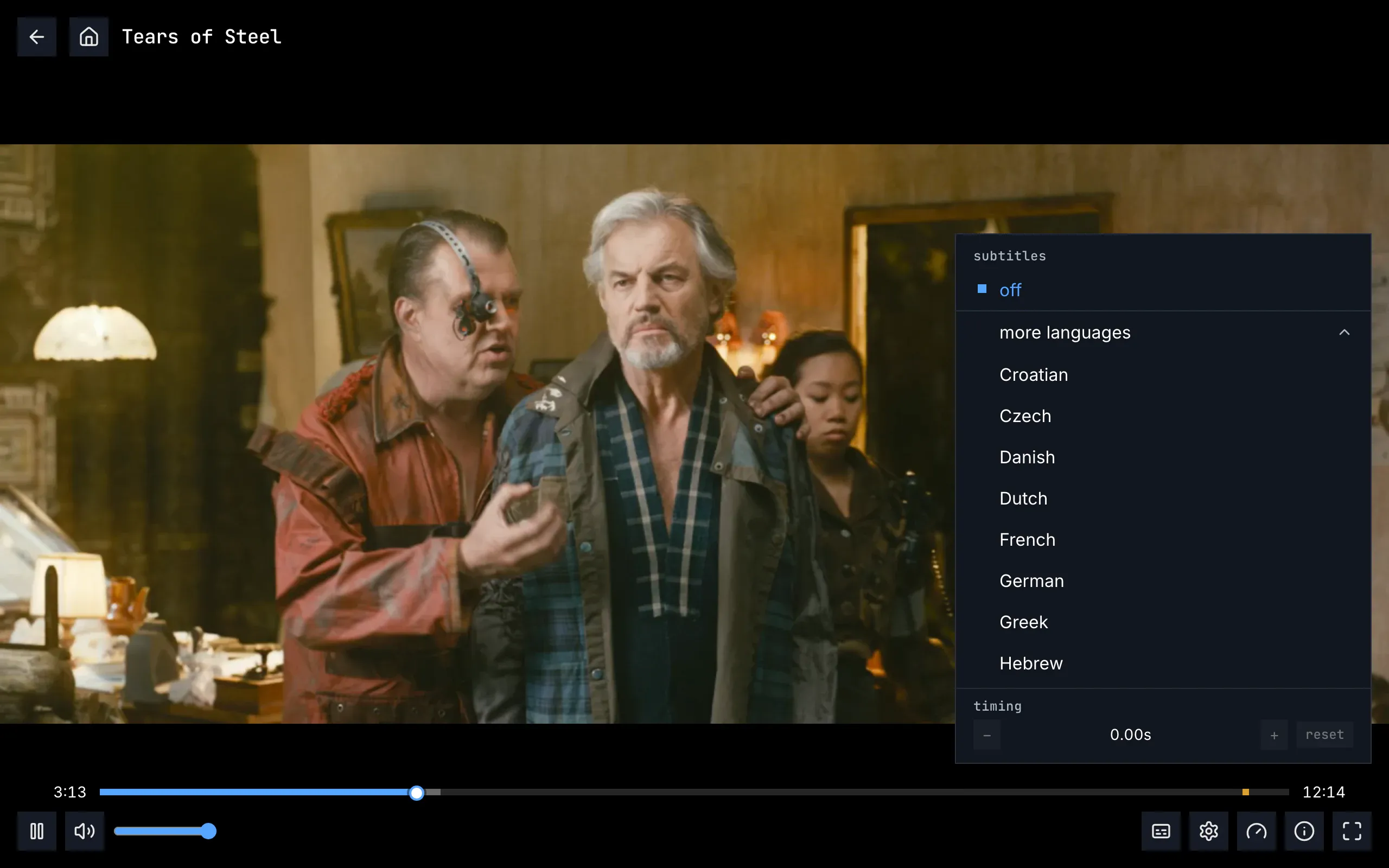
Figure 12.2: The web's subtitles menu with more languages opened, as deployed on 6 November 2026, on a computer, at 1280 × 800.
- off, with the header, stays at the top, above a line: the list under it scrolls.
- more languages, its arrow now pointing up, at the top of the list: the list has scrolled to it, and English is above it, out of view.
- The other languages, in alphabetical order of their names: “Croatian”, “Czech”, “Danish”, “Dutch”, “French”, “German”, “Greek”, “Hebrew” and on. The files call them “Deutsch” or “Français”; the menu names them in English.
- timing stays at the foot.
Figure 12.3 shows the menu on a phone held upright.
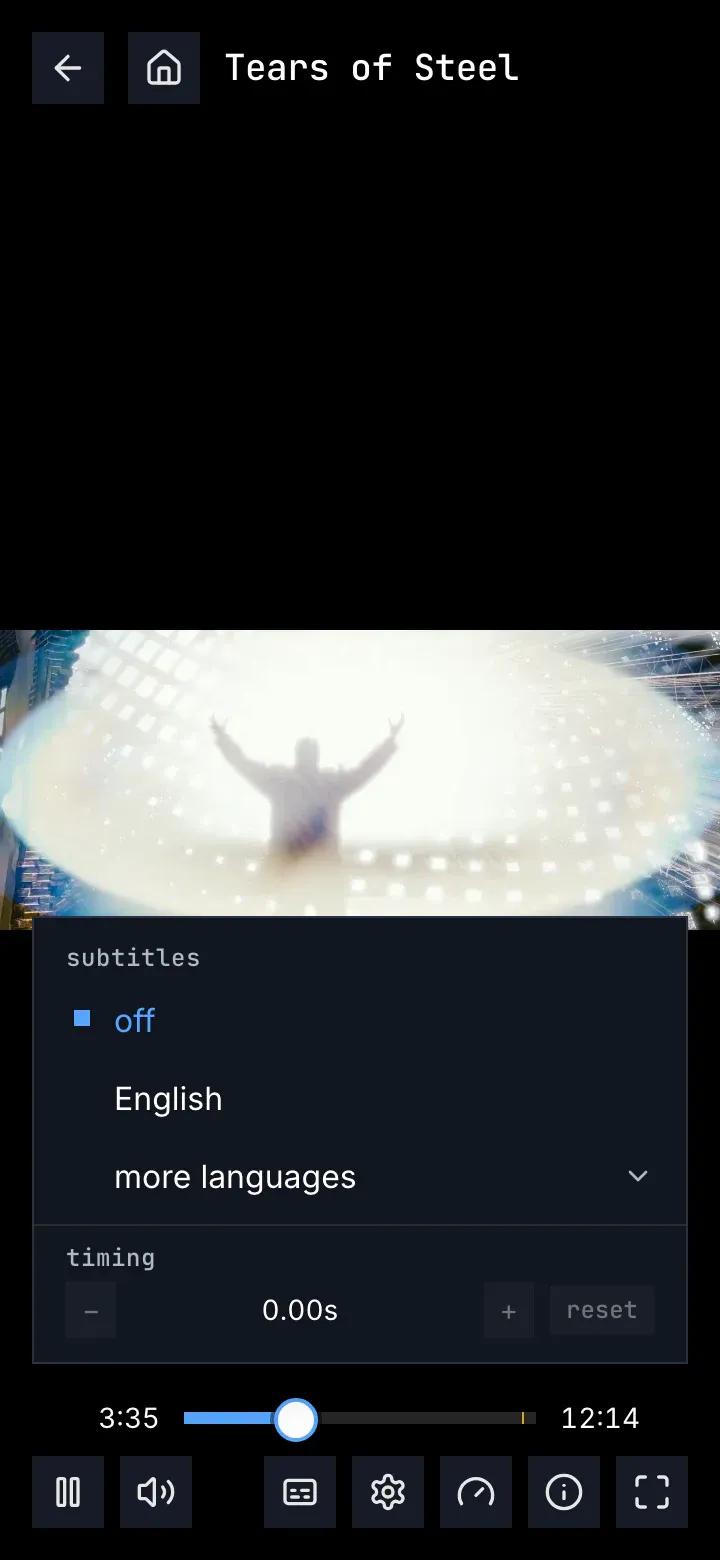
Figure 12.3: The web's subtitles menu as deployed on 6 November 2026, on a phone held upright, at 360 × 780.
- The picture, across the width in the middle, with black above and below it.
- The menu, as wide as the screen but for 16 px at each side, over the foot of the picture: off, English, more languages and timing, as on a computer.
- The subtitles button, the third in the row, after pause and the speaker.
Figure 12.4 shows it on a phone held sideways, where the screen is 360 px high.
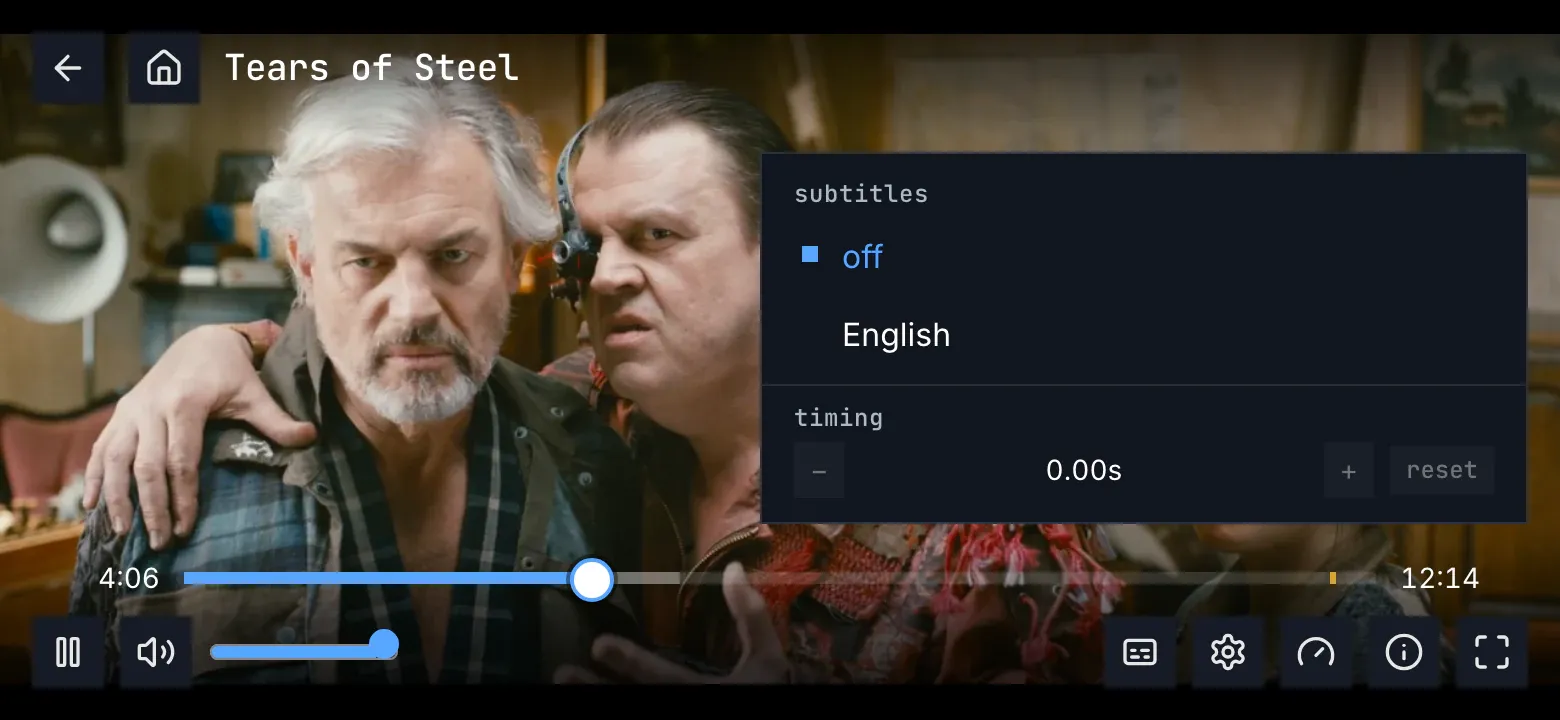
Figure 12.4: The web's subtitles menu as deployed on 6 November 2026, on a phone held sideways, at 780 × 360.
- The header and off, at the top of the menu, below the height of back and home.
- One row of the list, “English”. A screen this short leaves room for one row, and the list scrolls a row at a time; more languages is under English, out of view.
- timing, under the list, just above the seek bar.
Figures 12.5 and 12.6 show a subtitle on the picture. Figure 12.5 shows it with the controls hidden.
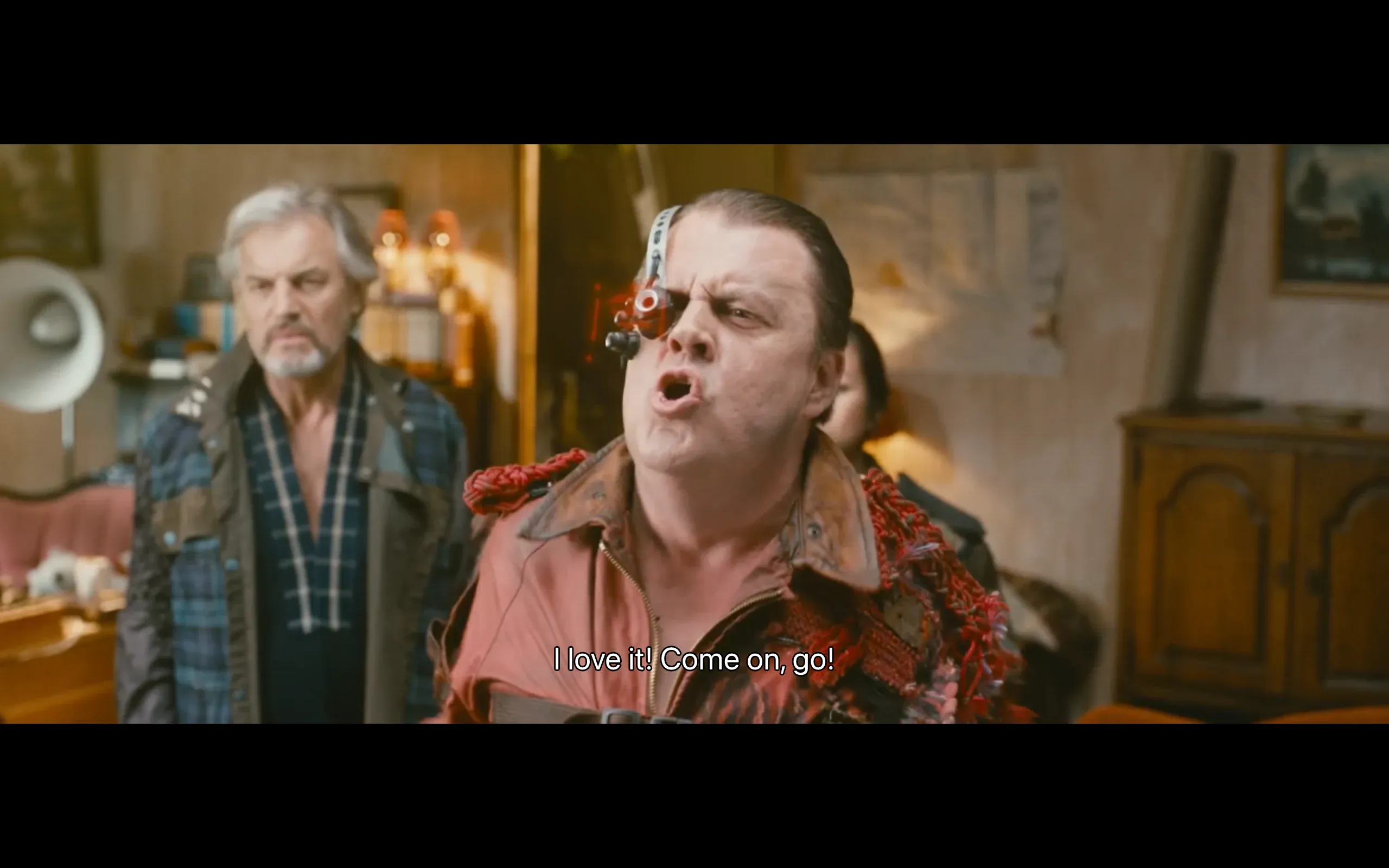
Figure 12.5: An English subtitle as deployed on 6 November 2026, on a computer, at 1280 × 800, with the controls hidden.
- The line, “I love it! Come on, go!”: white, with a thin black outline and no box, centred near the foot of the picture, inside it. Its size follows the picture's height.
- The black bars above and below the picture: the film is wider than the window, and the line stays on the picture, not in the bar.
On a computer the controls fit into the bar under a picture this wide, so the line stays where it is when they show. Figure 12.6 shows a phone held sideways, where the picture reaches the controls.
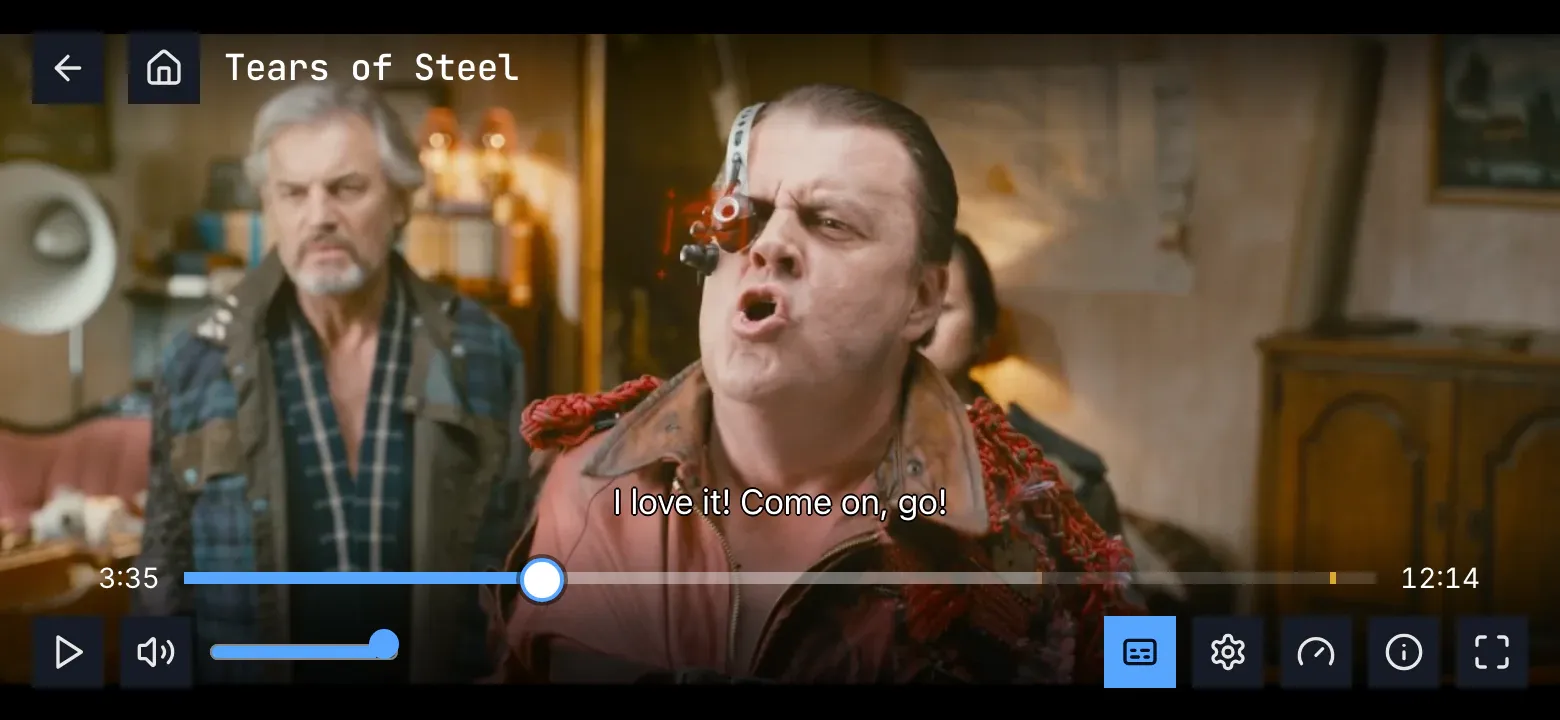
Figure 12.6: The same subtitle as deployed on 6 November 2026, on a phone held sideways, at 780 × 360, with the controls showing.
- The line has risen above the seek bar while the controls show, and it comes back down when they hide.
- The subtitles button is blue, its caption box dark, while a subtitle is on.
What the screenshots can't show comes from the code. No title on the demo has two audio tracks, so its audio menu doesn't appear there. The web shows the audio button, a chip with the language's code, “ENG”, only for a title with two audio tracks or more. Its menu, headed “audio”, opens right above the button, over the seek bar, with round corners. Each row is the language, “English”, with the codec as the server names it and the channels beside it in a smaller grey, “AAC · Stereo”, for a ready-made title “MP4A.40.2 · Stereo”; a 5.1 track reads “English 5.1”, and two that still read the same “English (2)”. A pick closes the menu and shows “Switching audio…” until the new track plays. A title without subtitles has its subtitles button dimmed, as chapter 11 shows. The web draws subtitles made as pictures over the player, and leaves out the ones it has no way to draw. A styled subtitle shows as the plain copy the package keeps beside it, in the one look. A web page can't read the device's caption preferences, so the web always shows its own look.
12.2.2 The phone app
Section titled “12.2.2 The phone app”The Android app's subtitles menu is a card 320 dp wide with round corners, above the seek bar under its button, at most 420 dp high, and it scrolls where it is longer. It is headed “subtitles” and starts with “off”, then the languages on top as on the web, then more languages, whose arrow points right, and down once it is open. The picked row is blue and a little bolder, with a small square before it, and a long name wraps to a second line. A pick closes the menu. It has no timing. A title without subtitles keeps the subtitles button, and its menu holds “off” alone.
The audio button is a chip with the language's code, there for a title with one track too. Its menu, “audio”, has the codec and the channels under each name, “E-AC-3 · 5.1”, and lists a track the phone can't play greyed, with “Not available on this device”. A pick closes it. The line is white with a black outline and no box, sized by the picture, as section 12.8 has it, and the phone's caption preferences win where someone has set them. Subtitles made as pictures are drawn.
The iOS app's subtitles menu lists every track in the order they come, without more languages, and a subtitle made as pictures is listed greyed, with “Not available on” and the device's name. Its picked row has a round dot.
12.2.3 Android TV
Section titled “12.2.3 Android TV”The menus open at the bottom right, above the control bar. The subtitles menu is headed “subtitles”: “off”, the languages on top, and more languages, whose arrow points down, and up once it is open. The subtitles button is there for a title without subtitles too, and its menu then says “No subtitles available” under “off”. The rows are focus rows, the menu opens on the subtitle that is on, and the picked row is blue with a small square before it. A pick closes the menu and says so at the top of the screen for a moment: “Subtitles: English”, “Subtitles off”. It has no timing.
The audio button is there for two tracks or more; its menu, “audio”, has the codec and the channels under each name, “E-AC-3 · 5.1”, lists only the tracks the TV can play, and a pick says “Audio: English • E-AC-3 • 5.1” at the top. The remote's subtitles key and audio key open their menus. While a menu is open, the subtitle line moves out of its way, left of it or above it. The TV's caption preferences win over the look.
12.2.4 Samsung TV
Section titled “12.2.4 Samsung TV”The menus open at one fixed place at the right, above the control bar, with round corners and headers in capitals, “AUDIO”, “SUBTITLES”. The subtitles menu starts with “Off” and lists every track, the server's ones first and then the file's own, each by its language and what its label adds, in brackets: “English (SDH)”, “German (Forced)”, “German (AI)”; two that would read the same are numbered, “English”, “English 2”. The picked row is in the accent colour with a check at its end; the focused row turns white with black text, and the focus starts on the first row, not on the picked one. A pick closes the menu. It has no timing. The subtitles button is there only for a title with subtitles, and the audio button for two tracks or more, its rows “English” and “English 5.1”.
The line sits in a dark box, at one size, 5rem above the foot of the screen and 17rem while the controls show, and the cue's markup is dropped, italics included. The TV's own caption settings weren't found in the code. On a TV the app plays through the TV's own player, and subtitles made as pictures are left out; only the browser engine it uses elsewhere draws them.
12.2.5 Feature by feature
Section titled “12.2.5 Feature by feature”The table compares the four apps feature by feature. “—” is a feature the app doesn't have, and “not found” one its code was searched for and doesn't have.
| Feature | Web | Phone app | Android TV | Samsung TV |
|---|---|---|---|---|
| The buttons | audio: a chip, “ENG”, for two tracks or more; subtitles: a caption box | the audio chip for one track too; subtitles | audio: an icon, for two tracks or more; subtitles | audio: an icon, for two tracks or more; subtitles |
| A title without subtitles | the subtitles button dimmed | the button, its menu “off” alone | the button, its menu “off” and “No subtitles available” | no subtitles button |
| Where the subtitles menu opens | above the whole bar, at its right end, 384 px wide | above the seek bar under its button, 320 dp wide, round corners | at the bottom right, above the bar | at one fixed place at the right, above the bar, round corners |
| Its header and first row | “subtitles”, “off” | “subtitles”, “off” | “subtitles”, “off” | “SUBTITLES”, “Off” |
| Its order | off; the setting's language and the server's languages, or the person's own where the server names none; more languages with the rest | Android: as the web; iOS: every track in the order they come | as the web | every track, the server's first, then the file's own |
| more languages | an arrow down, up once open; the list scrolls to it | an arrow right, down once open | an arrow down, up once open | — |
| A kind of track | “English · for deaf and hard of hearing”, “German · foreign-language parts only”, “Chinese (Simplified) · AI” | the same | the same | “English (SDH)”, “German (Forced)”, “German (AI)” |
| Two that read the same | shown once | shown once | shown once | numbered: “English 2” |
| The picked row | blue, a small filled square before it | blue and bolder, a small square; iOS a round dot | blue, a small square | in the accent, a check at its end |
| A pick | the menu stays open | the menu closes | the menu closes; “Subtitles: English” at the top | the menu closes |
| On a TV, the focus as it opens | — | — | on the subtitle that is on | on the first row |
| Timing | in the menu: −, “0.00s”, +, reset; 0.25 s a press, up to 10 s either way | — | — | — |
| Subtitles made as pictures | drawn | Android: drawn; iOS: listed greyed, “Not available on” and the device's name | drawn | left out on the TV's own player |
| Styled subtitles | the plain copy | the plain copy | the plain copy | the plain copy |
| The look | white, a black outline, no box; 5.33% of the picture's height, 8% above its foot, within 80% of its width | the same | the same, inside the safe area | a dark box, one size, 5rem above the foot of the screen |
| Italics and ruby | kept | kept | kept | dropped |
| The line and the controls | rises above them | rises above them | rises above them | 17rem high while they show |
| The line and an open menu | the menu may cover it | the menu may cover it | moves left of the menu or above it | the menu may cover it |
| The device's caption preferences | can't be read by a web page | win over the look | win over the look | not found |
| The remote's subtitles and audio keys | — | — | open their menus | not used |
| What comes on by itself | the setting's language when the audio is in another; else the foreign-language parts in the audio's language | the same | the same | the same |
| Off, picked in the menu | everything off, the foreign-language parts too | the same | the same | the same |
| The audio menu | “audio”, over the seek bar, round corners | “audio”, above the seek bar, round corners | “audio”, at the bottom right | “AUDIO”, at the fixed place |
| Audio rows | “English” with “AAC · Stereo” beside it, for a ready-made title “MP4A.40.2 · Stereo”; “English 5.1”; “English (2)” | the name over “E-AC-3 · 5.1”; a track it can't play greyed, “Not available on this device” | the name over “E-AC-3 · 5.1”; only tracks it can play | “English”, “English 5.1” |
| The original track, a described track | not marked | not marked | not marked | not marked |
| An audio pick | the menu closes; “Switching audio…” | the menu closes | the menu closes; “Audio: English • E-AC-3 • 5.1” at the top | the menu closes |
| The subtitle setting's text | the text of section 12.10 | the same | the same | “Your subtitle language. Subtitles in it come on by default when a title's audio is in another language. Off keeps them off by default. Forced subtitles, for the lines a title's audio has in another language, come on either way.” |
12.3 The panel on a computer
Section titled “12.3 The panel on a computer”Figure 12.7 shows the audio and subtitles panel on a computer, opened with audio and subtitles on the player's control bar (chapter 11). It is the one place to pick what a title plays in: the player has no audio menu and no subtitles menu besides it.
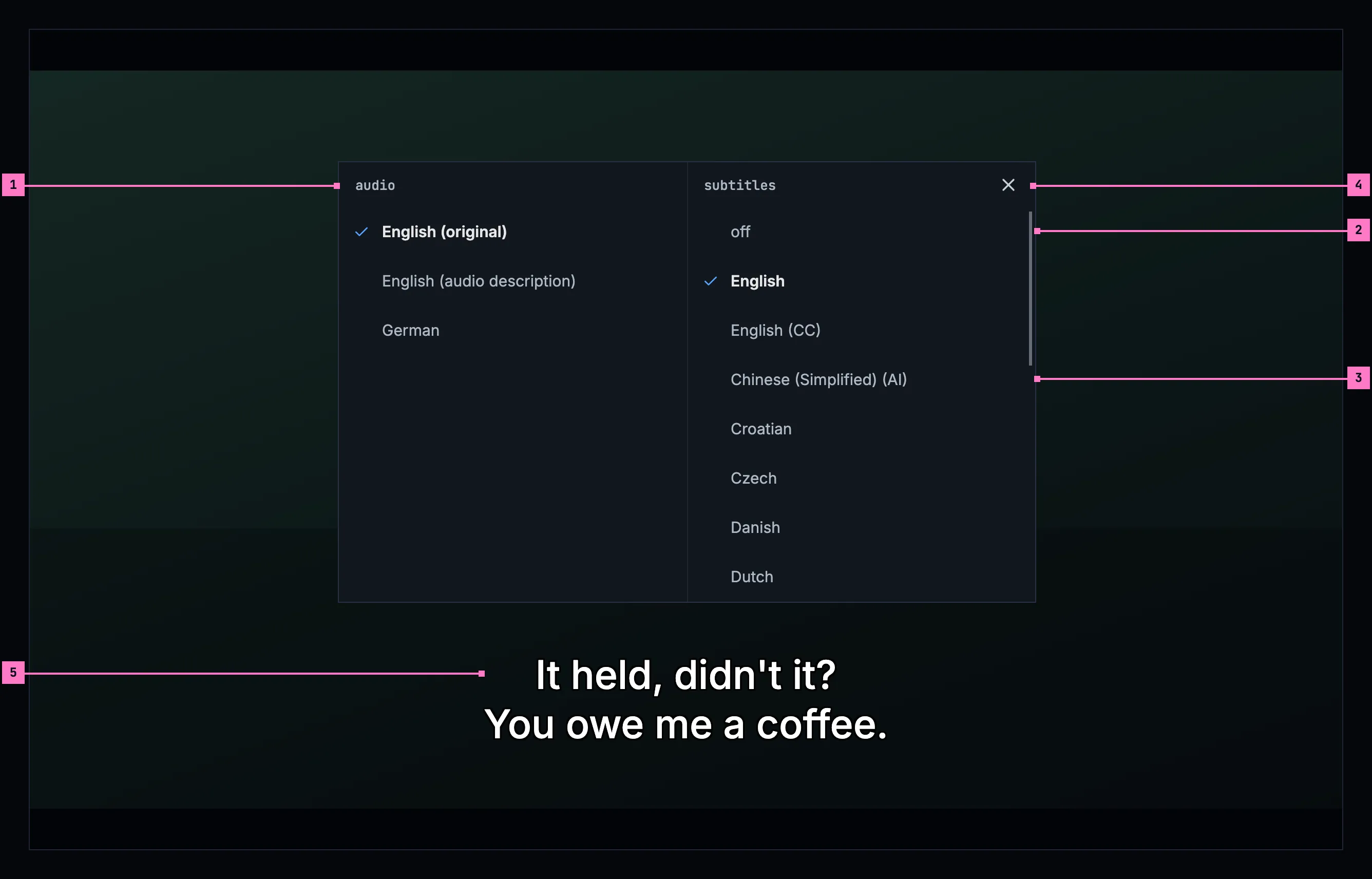
Figure 12.7: The audio and subtitles panel on a computer, at 1280 × 800.
- audio, the left column: the title's audio tracks, each by its language (section 12.6). The one that plays has a check before it and the brighter text: here English, the language the film was made in, “English (original)”. “English (audio description)” is the same film with a voice that describes the picture.
- subtitles, the right column: off first, then the person's languages, then every other language in alphabetical order of their names, in one list (section 12.7). Here the person picked English.
- The tags, short and in brackets: “(CC)” for subtitles that also describe the sounds and name who speaks, “(AI)” for subtitles the server made. A column longer than the panel scrolls within itself, under its heading.
- close, at the panel's top right.
- The line, at its place at the foot of the picture and as bright as ever: the panel ends above it, so a pick shows in the line at once.
- Opening and closing. audio and subtitles opens the panel in the middle of the screen, over the picture, which dims. The title plays on under it, or stays paused. While the panel is open the player's top and control bar step back, and they come back when it closes. close, Esc and a click on the dimmed picture close it, and the focus goes back to audio and subtitles.
- A pick. A row picks its track at once, and the panel stays open, so the audio and the subtitles can be set in one go and each pick is heard or read before the panel closes. A new audio track keeps the place; a subtitle that came on by itself follows it (section 12.9). Nothing else says what was picked: the check does.
- The rows. The picked row of each column has a check before its name and the brighter text; every other row keeps the check's room, so the names line up. The headings, audio and subtitles, are in the monospace face, in lowercase; the rows are names, in the body face, 48 px high, and a name too long for its column wraps to a second line.
- Its size. Two columns of 340 px, as tall as the longer one needs, up to the room above the line's place; a longer column scrolls within itself, its heading staying.
- The keyboard and a screen reader. While the panel is open the arrow keys move in it, as on a TV: up and down within a column, left and right to the other column's picked row. Enter or space picks the focused row, and Esc closes the panel; the player's own keys wait until it is closed. For a screen reader each column is a group of one choice named by its heading, and each row says its name and whether it is picked.
The subtitles' timing isn't in the panel: it is in the player's settings menu, with the quality (chapter 11).
12.4 The panel on a phone
Section titled “12.4 The panel on a phone”The phone shows the panel held either way. Figure 12.8 shows it upright, where two columns don't fit, and figure 12.9 sideways; section 12.4.3 says what happens when the phone is turned with the panel open. The web on a phone has the same panel, held either way.
12.4.1 Held upright
Section titled “12.4.1 Held upright”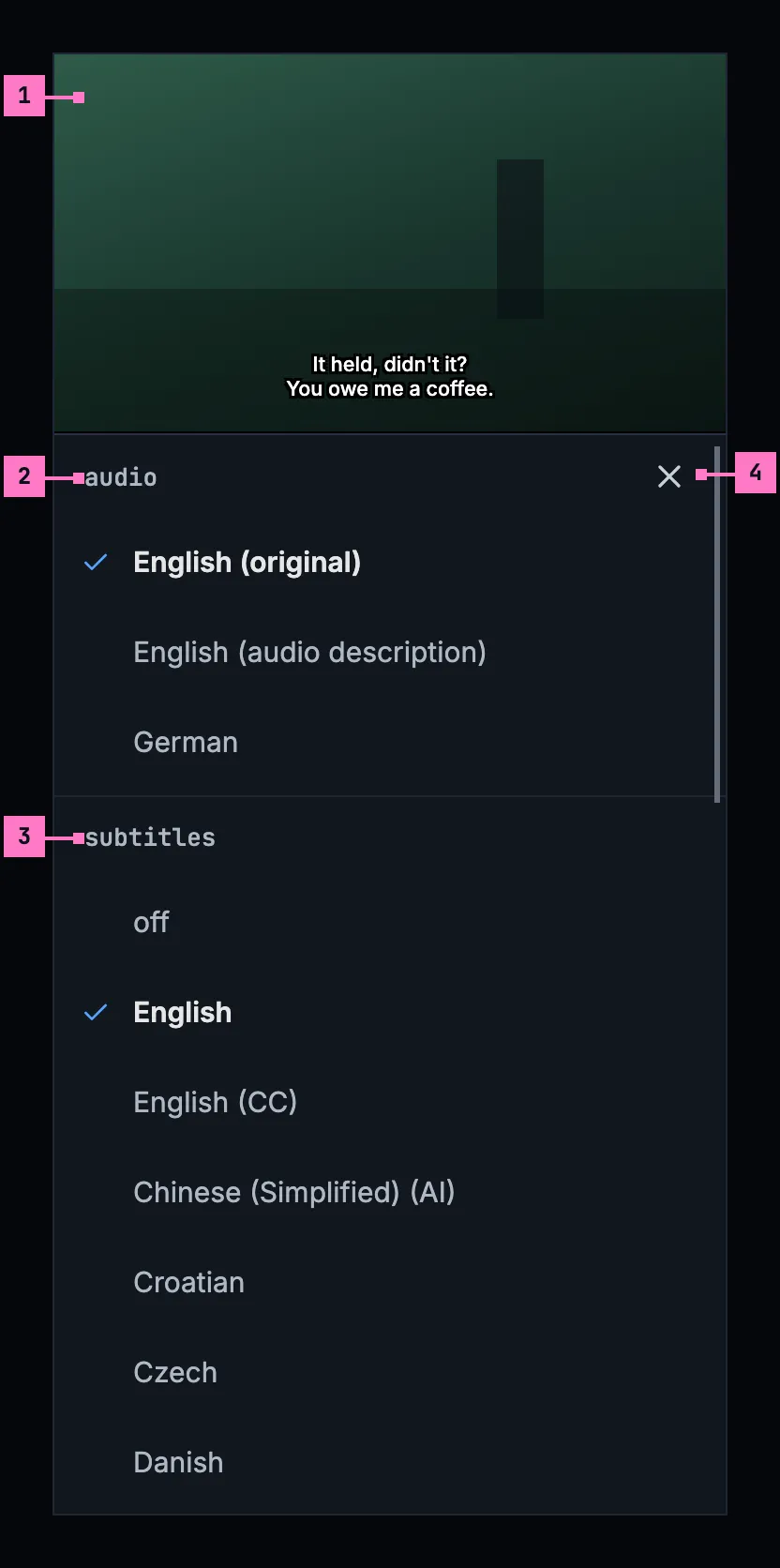
Figure 12.8: The audio and subtitles panel on a phone held upright, at 360 × 780 dp.
- The picture moves to the top of the screen while the panel is open, its subtitle line with it, so a pick shows there at once.
- audio, the first list, under the picture.
- subtitles, the second list, under the audio's. The two lists scroll as one, their headings with them.
- close, at the right of the first heading. A tap on the picture and the phone's back close the panel too, and the picture goes back to the middle.
Upright, two columns don't fit 360 dp, so the lists stand one under the other in the order of the computer's columns, with the same rows, 48 dp high. The panel fills the screen under the picture, and the phone's status bar and navigation bar stay, with the panel clear of them.
12.4.2 Held sideways
Section titled “12.4.2 Held sideways”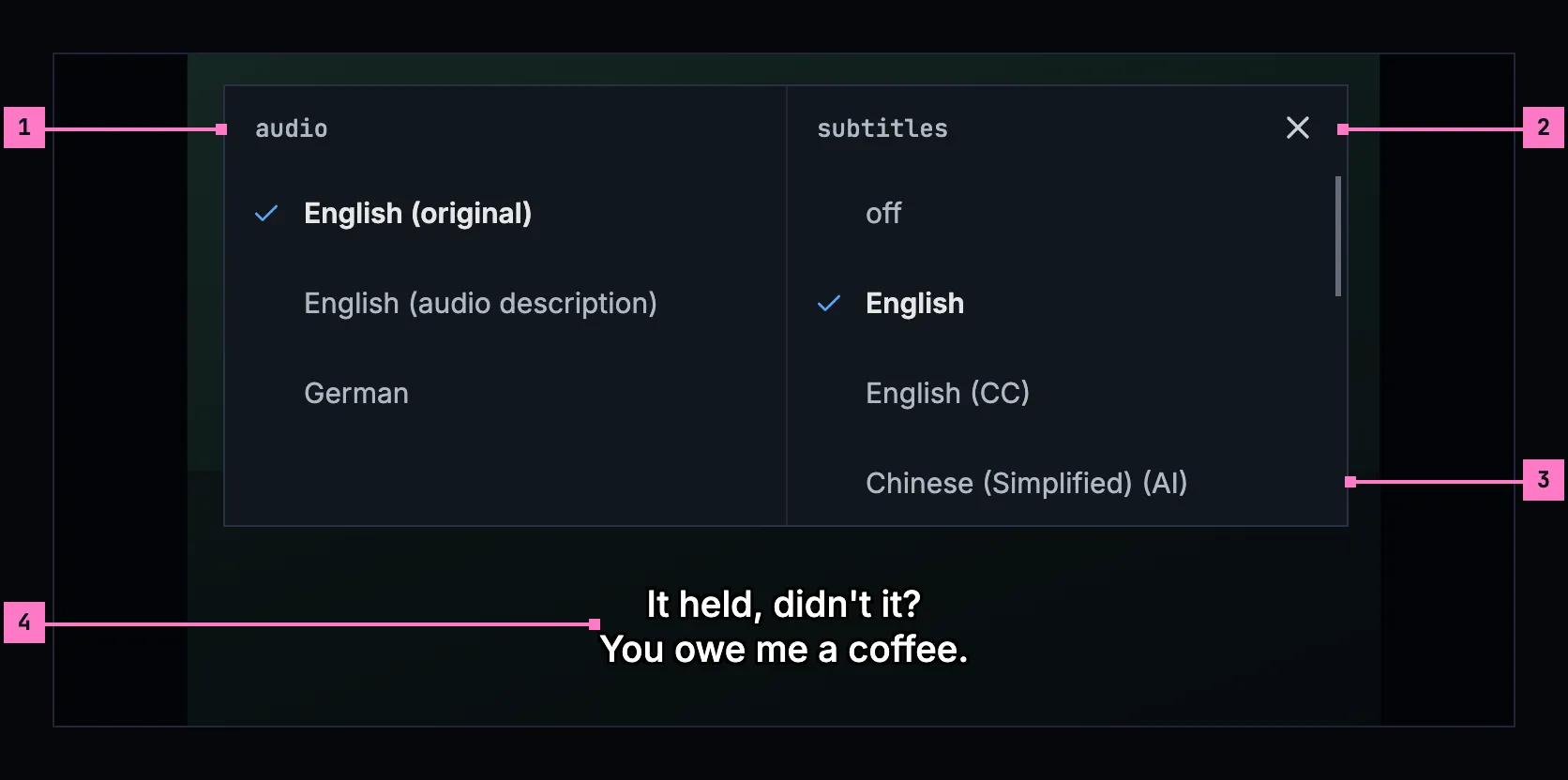
Figure 12.9: The audio and subtitles panel on a phone held sideways, at 780 × 360 dp.
- The two columns of figure 12.7, 300 dp each, over the dimmed picture.
- close, at the panel's top right. A tap on the dimmed picture and the phone's back close the panel too.
- A column longer than the panel scrolls within itself, under its heading: the screen leaves room for four rows above the line.
- The line, at the foot of the picture under the panel: the panel ends above it.
Held sideways, the panel keeps clear of the camera's cutout, as the picture does (chapter 11).
12.4.3 Turning the phone
Section titled “12.4.3 Turning the phone”The panel turns with the phone and stays open, with its picks and the place each list was scrolled to. Turned upright, the columns become the two lists under the picture, and the picture moves to the top; turned sideways, the lists become the two columns over the dimmed picture. The title plays on, as it does with the panel closed (chapter 11).
12.5 The panel on a TV
Section titled “12.5 The panel on a TV”Figure 12.10 shows the panel on a TV, with the focus moved one row down from the subtitle that is on.
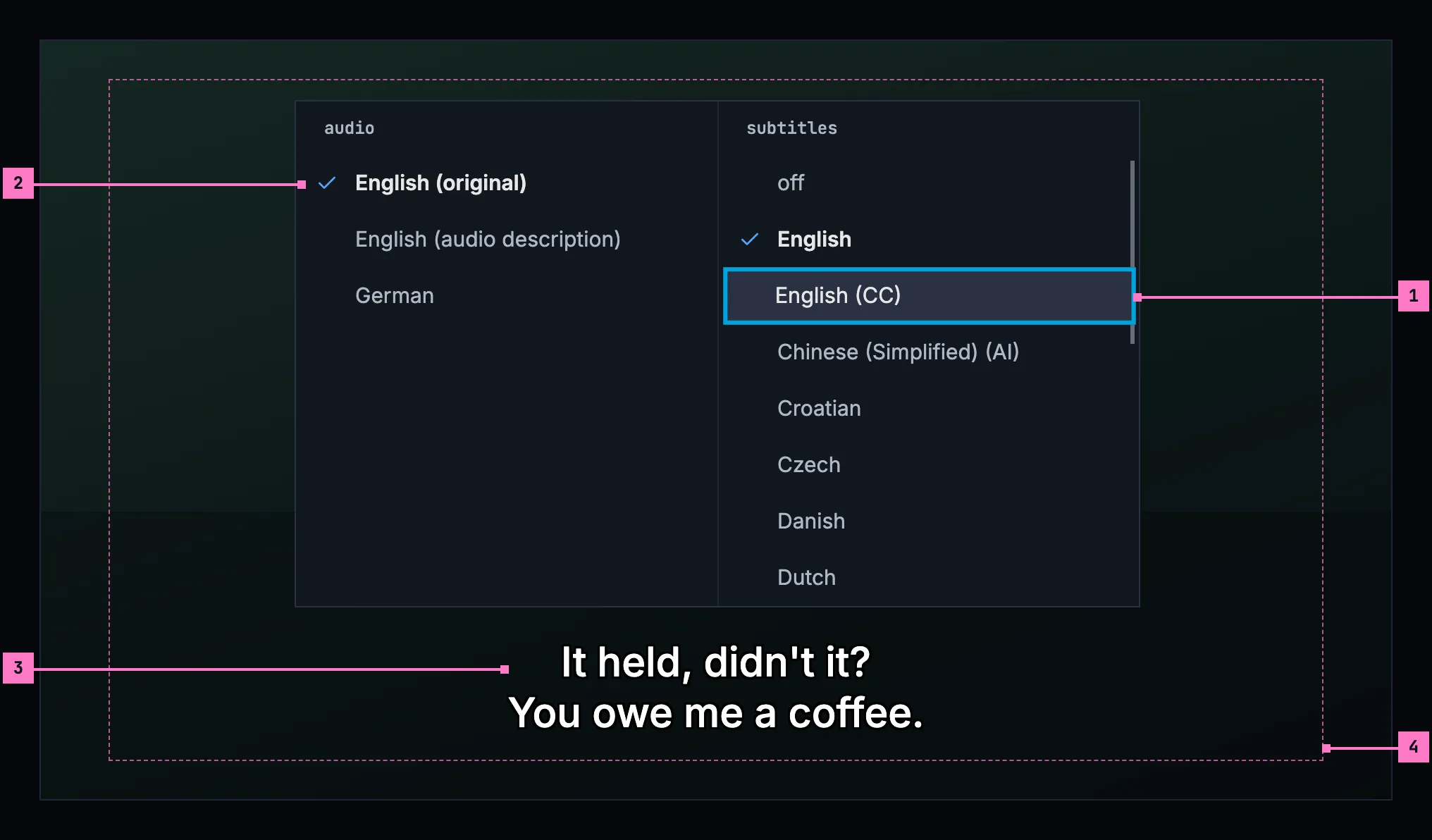
Figure 12.10: The audio and subtitles panel on a TV, at 960 × 540 dp.
- The focus, on “English (CC)”: the ring inside the row, the lighter surface, the row a little larger and its text the brightest, as everywhere on the TV. OK picks it, and the panel stays open.
- The picked rows, one in each column, with the check and the brighter text. The focus and the pick never share a mark: the ring moves, the check stays where the pick is.
- The line, at its place under the panel.
- The safe area. The panel, its focus ring and the line keep inside it.
The remote's subtitles key opens the panel with the focus on the picked row of the subtitles column, and its audio key on the picked row of the audio column; audio and subtitles on the control bar opens it on the subtitles column, which most titles have a choice in. Up and down move within a column and stop at its ends; left and right move to the other column's picked row. back closes the panel and gives the focus back to audio and subtitles; where a key of the remote opened it over hidden controls, they stay hidden. The TV has no close button, as back is the way out everywhere on the TV. Rows are 40 dp high, and the panel stays inside the safe area, with room for the focus ring.
12.6 The audio column
Section titled “12.6 The audio column”The audio column lists the title's audio tracks this device can play, in the order the title has them. A track the device can't play is left out, never greyed. Each track is named by its language, as the word list writes it, “German”, “Portuguese (Brazil)”, a track without dialogue “No dialogue”, and one in no language the apps know by what the file calls it, else “Unknown”. A few short tags follow the name in brackets, a comma between two:
- “(original)” marks the language the title was made in: the track the audio setting's Original would play (chapter 11), and every other track in that language but a described one. It shows only where the title has audio in more than one language; a title in one language needs no mark.
- “(audio description)” marks a track with a voice that describes the picture for people who can't see it, as the file marks it.
- The channels, “(5.1)”, “(7.1)”, “(stereo)”, “(mono)”, show only where two tracks of one language would read the same without them, and then on both: “English (5.1)” and “English (stereo)”.
- What the file calls a track tells two apart that still read the same, “English (Commentary)”; where it says nothing, their place does, “English (2)”.
So a title made in English with a German dub reads “English (original)” and “German”; one in English alone, served with its 5.1 track beside its stereo one, “English (5.1)” and “English (stereo)”; and the same with the dub “English (original, 5.1)”, “English (original, stereo)” and “German”. Nothing else is said of a track: no codec, and no channels where they tell nothing apart. A title with one audio track shows it alone, picked, so the panel always says what plays.
12.7 The subtitles column
Section titled “12.7 The subtitles column”The subtitles column is one list of one choice, in this order:
- off
- the person's languages: the subtitle setting's language, the audio setting's language when it isn't “Original”, and the device's or the browser's language, each once, in that order
- every other language the title has subtitles in, in alphabetical order of their names
The list has no more languages: it holds every subtitle the title offers, and it scrolls where it is long. The person's languages come first, so the subtitles most people pick are a press or two from off.
A language's tracks stay together, the ones the server made included, and a language with its region or script counts as that language: “Chinese (Simplified) (AI)” follows “Chinese”. So a person's language, named with or without a region or script, brings all of its tracks to the top: a device set to Chinese (Traditional) brings “Chinese (Simplified)” with it. Within a language, the plain track comes first, then “(CC)”, then the ones the server made. A language with regions or scripts gives each of them a run of its own, the bare name first and the others in alphabetical order: “Chinese”, “Chinese (Simplified)”, “Chinese (Simplified) (AI)”, “Chinese (Traditional)”.
A track is named by its language, as the word list writes it, with short tags in brackets after it:
- “(CC)” for subtitles that also describe the sounds and name who speaks: “English (CC)”;
- “(AI)” for subtitles the server made: “German (AI)”; both together, “English (CC, AI)”;
- what a file's label adds, in brackets as the file writes it: “English (Commentary)”, “Chinese (Cantonese)”. Words that only name the language again, “Deutsch”, “中文”, are dropped.
Tracks that would read the same show once: one inside the file before one the server adds, otherwise the first in the file. They are never numbered, as in “English (2)”.
Some tracks aren't listed at all:
- The foreign-language parts. A track that covers only the lines in another language than the audio's comes on by itself where it is needed (section 12.9), so it is never a row of its own.
- A subtitle this device can't draw, as an audio track it can't play isn't listed either.
- Subtitles made as pictures inside an original file, which the server can't hand out as a file of their own.
The picked row has the check and the brighter text. off is picked when no listed subtitle is on, the foreign-language parts showing or not. A title without subtitles, whose panel opens for its audio, shows off alone; chapter 11 says when the button is there.
12.8 The look
Section titled “12.8 The look”- White text with a black outline, with no box behind it.
- Its size follows the picture: 5.33% of the picture's height.
- The device's own sans-serif font, so every language has its letters, Chinese, Japanese and Korean included.
- Centred at the bottom, inside the picture, 8% above its bottom edge; at most two lines where the text allows, within 80% of the picture's width. On a TV, it stays inside the safe area.
- One look for every text subtitle. Colours, sizes, boxes, fonts and positions that come inside a plain text subtitle are ignored. Italics stay, because they mean something: a voice from off screen, a song, a thought. Ruby, the small readings above Japanese and Chinese characters, stays too.
- Styled subtitles keep their own look. A subtitle made with its own styles and fonts (ASS) is drawn as it was made, with the fonts the title carries, as ADR-0015 decides: the package keeps every subtitle as it is. An app that can't draw styled subtitles yet shows the plain copy the package keeps beside them, in the look above.
- One subtitle at a time.
- Out of the controls' way: while the player's controls show, the line moves up above them, and back down when they hide, at the controls' own pace.
- Clear of the panel and the menus. The audio and subtitles panel ends above the line's place, and an open menu of the player moves the line out of its way (chapter 11), so neither hides the line it changes.
- The picture is what shows of it. Where the player crops a file's black bars or fills the screen (the picture, in chapter 11), the size, the margin and the width go by the frame as it shows on the screen.
- Subtitles made as pictures (PGS) stay on the picture, where the file puts them, scaled with it. One in a bar that is cropped moves up onto the picture (or down, from a top bar), keeping the gap it had to the frame's edge, at most a text line's 8%; one wider than what shows is made smaller in its own shape. None is ever cut off the screen, and where nothing is cropped, none moves.
When someone has set caption preferences on the device, under accessibility, those win over this look: for example a box behind the text. The TV and the phone apps read them; a web page can't, so the web app always shows this look.
Figure 12.11 shows subtitles on a TV, with the controls hidden.
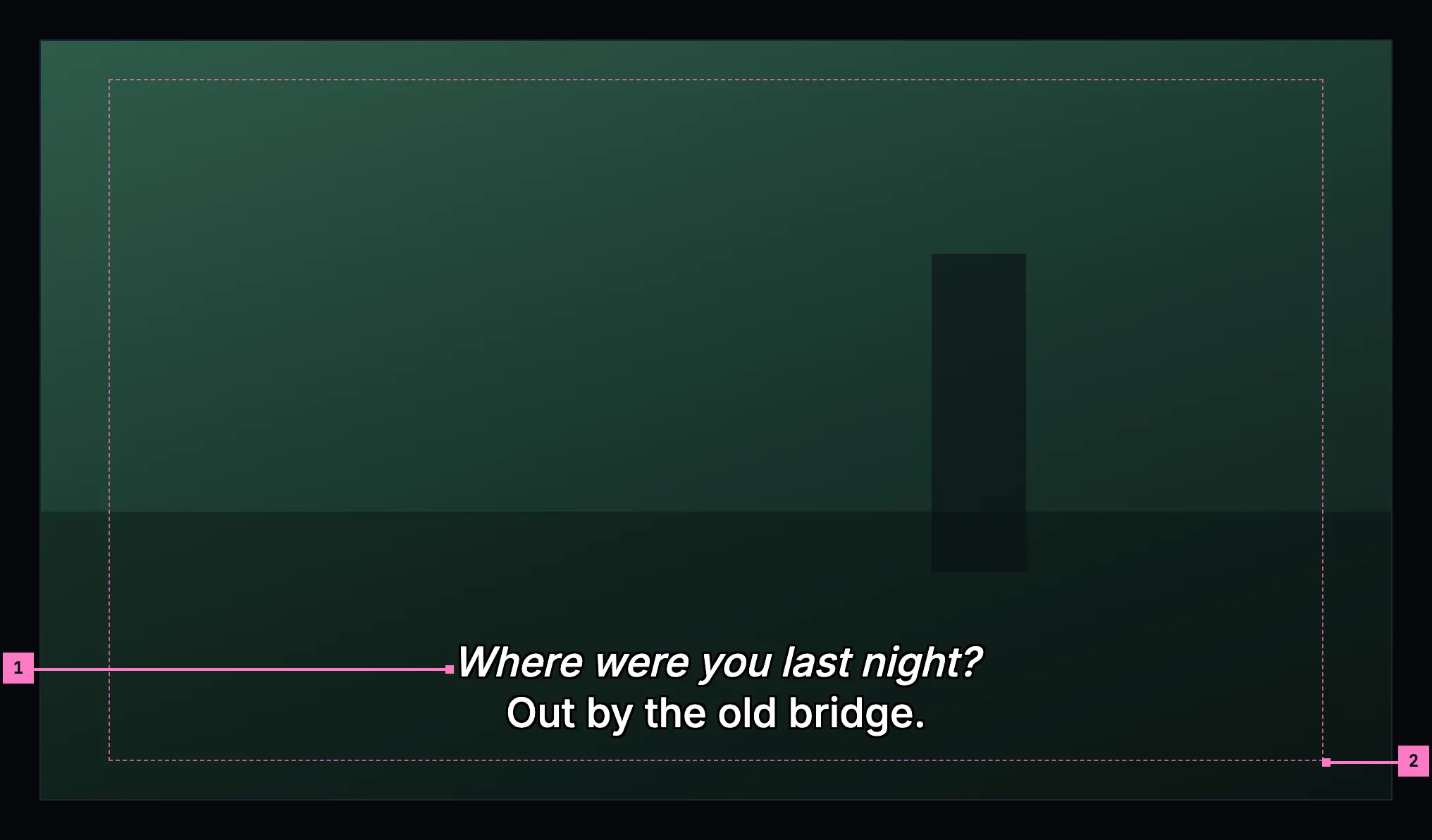
Figure 12.11: Subtitles on a TV, at 960 × 540 dp, with the controls hidden.
- The line: white with a black outline, 5.33% of the picture's height, centred 8% above its foot. Italics stay: here the first line is a voice from off screen.
- The safe area. On a TV the line keeps inside it, whatever the picture.
Figure 12.12 shows the look with its guides, and the same line above the controls.
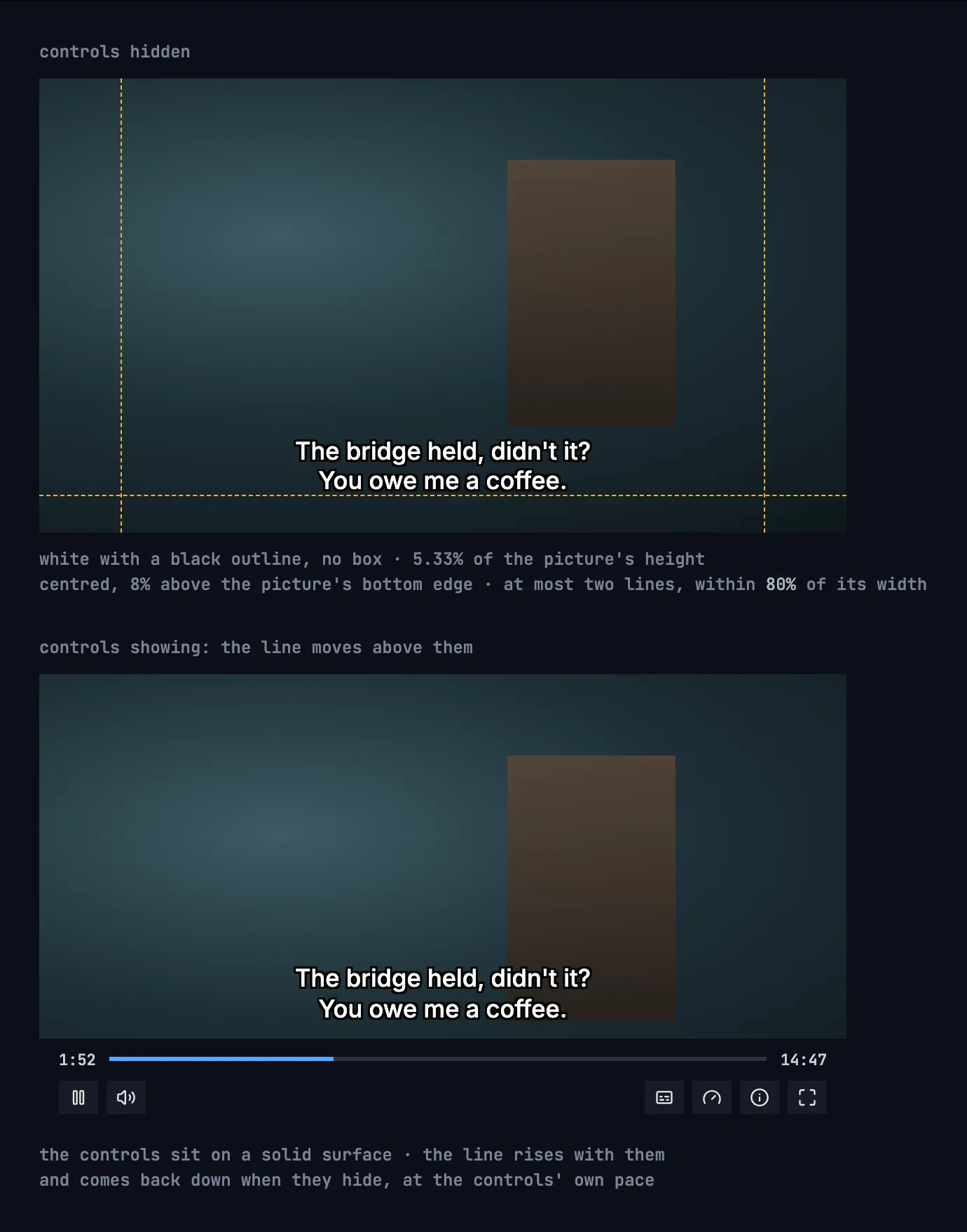
Figure 12.12: A subtitle with the controls hidden, with its guides, and the same line above the controls.
12.9 What switches on by itself
Section titled “12.9 What switches on by itself”- The subtitle setting's language, when the audio playing is in another language: its first track in the subtitles column's order, the setting's region or script first, so a setting of Chinese (Traditional) turns on “Chinese (Traditional)” where the title has it.
- Otherwise, the foreign-language parts in the audio's language, where the title has them, because they translate the lines the audio doesn't.
- Nothing else. Subtitles in the audio's own language are the person's choice, made in the panel.
The rule compares with the audio that is playing, never with the preferred audio language, and it is made again when the audio changes. A pick in the panel lasts for what is playing now. A picked subtitle stays, whatever the audio. off leaves the dialogue without subtitles, and the foreign-language parts in the audio's language still come on by themselves, following the audio, because without them those lines can't be understood. The next title follows the setting again. Figure 12.13 shows the rule as a title starts.
flowchart TD
  start([a title starts]) --> setting{"the subtitle setting is a language,<br/>and the audio is in another one?"}
  setting -- yes --> has{"the title has subtitles<br/>in that language?"}
  has -- yes --> on["those subtitles come on"]
  has -- no --> parts
  setting -- no --> parts{"the title has subtitles for the foreign-language<br/>parts only, in the audio's language?"}
  parts -- yes --> partson["they come on"]
  parts -- no --> off["subtitles stay off"]
Figure 12.13: What switches on by itself as a title starts.
12.10 The setting
Section titled “12.10 The setting”Settings has one subtitle language, “off” or a language, with this text under it, the same in every app. The languages offered are the server's subtitle languages, read from its configuration, never a list fixed in the app; a server that names none offers every language by name.
Subtitles in the language you pick here come on when a title's audio is in another language. Otherwise, only the foreign-language parts get subtitles, where a title has them. A choice in the player applies only to what's playing now.
12.11 For the builders
Section titled “12.11 For the builders”- Android: the player's subtitle view with embedded styles and embedded font sizes switched off, a fractional text size of 0.0533, and a caption style of white text, a black outline, and a transparent background and window. When the system's caption settings are switched on, it takes the user's style and text size instead. The safe area comes from a bottom margin and the 80% width, not from padding the view. Switching embedded styles off also drops italics, so the apps keep italic spans themselves. Ruby survives the switch, but the player's own drawing leaves the readings out, so the apps draw them themselves. The view sits over the player's frame, not inside it: the frame is drawn scaled and moved to fit its picture, the subtitle view is laid out at what shows of it, and a PGS picture is placed there by the same rule as the web's.
- Web: an overlay the app draws instead of the browser's own captions, one track
at a time: white, no background, an outline drawn with text shadows in eight
directions, a font size relative to the picture's height. It keeps
<i>and<ruby>from the cue and drops every other style. PGS pictures are drawn one by one onto a canvas over the player, each where the picture's transform and the rule above put it. The overlay sits above the panel's dimming, so the line keeps its brightness while the panel is open. - Language names come from the platform in their standard form, the language
first and the region or script in brackets: “Portuguese (Brazil)”, “English
(Guam)”, “Chinese (Simplified)”. On the web that is
Intl.DisplayNameswithlanguageDisplay: 'standard'; its default gives “Brazilian Portuguese”. - The audio tags: “(original)” goes by the track the apps play for Original today, the one the file marks as its default, and its language. “(audio description)” needs the file's mark for a described track, its disposition for the visually impaired, which the server's play info doesn't pass on yet and has to, with each audio track (change 11.C30); a track's name that says “Audio Description” counts too.
- “(CC)” goes on the tracks the apps call “for deaf and hard of hearing” today: a label that says so, SDH, CC or hard of hearing, or on Android the stream's mark of a track that describes the sounds.
12.12 Changes
Section titled “12.12 Changes”Every difference between section 12.2 and the target is one change in the table. A change names the apps it is built in, what they do today and the target, with the figure or the section that sets it out; it is built as its row says, and nothing else changes with it. Each change starts as proposed; once the owner approves it, it is built, one change at a time. A target that starts with “Recommended” takes away something an app has today. The control bar's one button is change 11.C2 of chapter 11, the timing in the settings menu 11.C3, and the audio column's names 11.C30; the setting's own rows, such as its first value, belong to chapter 16.
| No. | Change | Apps | Today | Target | Status |
|---|---|---|---|---|---|
| 12.C1 | One panel for the audio and the subtitles | Web, Phone app, Android TV, Samsung TV | an audio menu and a subtitles menu, each at its own button: Web: the subtitles menu above the whole bar (figure 12.1), the audio menu over the seek bar, round corners. Phone app: round cards above the seek bar. Android TV: at the bottom right. Samsung TV: at one fixed place, headers in capitals. The picked row blue with a square (Samsung TV: a check at its end). A pick closes the menu, but in the web's subtitles menu; Android TV then says “Subtitles: English” or “Audio: …” at the top. Samsung TV's focus starts on the first row | the panel of sections 12.3 to 12.5: two columns, audio and subtitles, over the dimmed picture, on a phone held upright the two lists under the picture at the top; the controls step back while it is open; the picked row with a check and the brighter text; a pick applies at once, the panel stays open and nothing else says what was picked; close, Esc, a press on the dimmed picture or back closes it; it ends above the subtitle line; on a TV the focus starts on the picked row of the column, left and right move between the columns | proposed |
| 12.C2 | The subtitles column: one list, the person's languages first | Web, Phone app, Android TV, Samsung TV | Web, Phone app (Android), Android TV: off, the setting's language and the server's languages, or the person's own where the server names none, then more languages with the rest (figure 12.2). iOS: off, then every track in the order they come. Samsung TV: Off, then every track, the server's first | off, the person's languages, then every other language in alphabetical order of their names, in one list without more languages; the server's languages don't change the order (section 12.7) | proposed |
| 12.C3 | Short tags for the subtitles' kinds | Web, Phone app, Android TV, Samsung TV | Web, Phone app, Android TV: “English · for deaf and hard of hearing”, “German · AI”, “English · Commentary”. Samsung TV: what the label adds in brackets, “English (SDH)”, “German (AI)”, and two that read the same numbered, “English 2” | “English (CC)”, “German (AI)”, “English (CC, AI)”, “English (Commentary)”, never numbered (section 12.7). The word list of chapter 18 changes with it: “(CC)” in place of “for deaf and hard of hearing”, “(AI)” in brackets in place of “· AI”, and “foreign-language parts only” no longer a row's name | proposed |
| 12.C4 | The foreign-language parts: not listed, and on with off | Web, Phone app, Android TV, Samsung TV | listed as rows, “German · foreign-language parts only” (Samsung TV: “German (Forced)”); a person's off turns them off too | not listed; in the audio's language they come on by themselves whenever no listed subtitle is on, off included, and follow the audio (section 12.9) | proposed |
| 12.C5 | iOS: a subtitle it can't draw is left out | Phone app (iOS) | a subtitle made as pictures is listed, greyed, with “Not available on” and the device's name | Recommended: left out, as the other apps leave out what they can't draw (section 12.7); drawing it is change 12.C7 | proposed |
| 12.C6 | Samsung TV: the one look | Samsung TV | the line in a dark box, one size, 5rem above the foot of the screen and 17rem while the controls show; the cue's markup dropped, italics too; the TV's caption settings not found | section 12.8: white with a black outline and no box, 5.33% of the picture's height, 8% above its foot, within 80% of its width and the safe area; italics and ruby kept; the TV's caption settings win | proposed |
| 12.C7 | Subtitles made as pictures, drawn on iOS and Samsung TV | Phone app (iOS), Samsung TV | iOS: not drawn. Samsung TV: left out on the TV's own player | drawn on the picture, as section 12.8 says and ADR-0015 decides | proposed |
| 12.C8 | Styled subtitles drawn as they were made | Web, Phone app, Android TV, Samsung TV | every app shows the plain copy the package keeps beside a styled subtitle, in the one look | drawn as made, with the fonts the title carries (section 12.8), as ADR-0015 decides; the plain copy only in an app that can't draw them yet | proposed |
12.13 States
Section titled “12.13 States”Subtitles have no screens of their own; the player's states are in chapter 11. What subtitles and the panel do in the cases between:
| State | What shows |
|---|---|
| The title has one audio track and no subtitles the panel lists | The control bar has no audio and subtitles button |
| The title has no subtitles, and two audio tracks or more | The subtitles column holds off alone |
| The title has one audio track | The audio column shows it alone, picked, without a tag (section 12.6) |
| A subtitle for the foreign-language parts only | Not listed; it comes on by itself (section 12.9) |
| A subtitle this device can't draw | Not listed (section 12.7) |
| A file's subtitles made as pictures inside it | Not listed (section 12.7) |
| A subtitle that can't be loaded | The title plays on without it |
| The panel is open | The picture dims, the controls step back, and the line keeps its place and its brightness (section 12.3) |
| The device has caption preferences | They win over the look (section 12.8) |
| The controls show | The line rises above them (figure 12.12) |
| The player crops the bars or fills the screen | The line goes by what shows of the picture (section 12.8) |
| Zap | No subtitles on a card (chapter 10) |
12.14 Words
Section titled “12.14 Words”| Where | Text |
|---|---|
| The control bar's button | audio and subtitles; for a screen reader with what is set after a comma, “audio and subtitles, English (original), subtitles English”, “audio and subtitles, German, subtitles off” |
| The panel's headings | audio · subtitles |
| The panel's close button, for a screen reader | close |
| The audio rows | “English”, “English (original)”, “English (audio description)”, “English (5.1)”, “English (stereo)”, “English (original, 5.1)”, “English (Commentary)”, “English (2)”, “No dialogue”, “Unknown” |
| The subtitles column's first row | off |
| The subtitles rows | “English”, “English (CC)”, “German (AI)”, “English (CC, AI)”, “Chinese (Simplified) (AI)”, “English (Commentary)” |
| The timing, in the player's settings menu | subtitle timing · − · + · “0.00s”, “+0.25s”, “−0.50s” · reset (chapter 11) |
| The setting | the text of section 12.10; its first choice “off” |