8 Watchlist and lists
Section 8.2 describes the watchlist as it is deployed today. The sections after it are the target, the watchlist as it is meant to be, and section 8.9 lists every difference between the two as a numbered change. Only a change the owner has approved is built, one change at a time; anything no change names stays as it is deployed.
This chapter specifies the watchlist: the Watchlist, the list every account has, and the lists people make of their own, with how a list is created, renamed and deleted. A title goes into a list on its page, with the add-to-list control of chapter 6. The frame around the view is specified in chapter 2.
8.1 Purpose
Section titled “8.1 Purpose”The watchlist keeps what people mean to watch, and lets them sort it into lists of their own, such as one for Sunday nights or one for the kids. watchlist in the frame opens it. The view is named after the list it starts with, the Watchlist, and shows every list as a row; a list opens on its own with all of its titles.
8.2 As deployed
Section titled “8.2 As deployed”This section says what the four apps' watchlists do as of 6 November 2026: the web as the public demo showed it that day, on the same build as production, and the apps as their code had them that day. The phone app, Android TV and the Samsung TV are described from their code until screenshots of them are taken. The Samsung TV app isn't released yet.
8.2.1 The web
Section titled “8.2.1 The web”Figures 8.1 to 8.4 are screenshots of the web's watchlist, signed in as the demo's viewer, whose Watchlist holds one title and who has no list of its own. Figure 8.1 shows it on a computer.
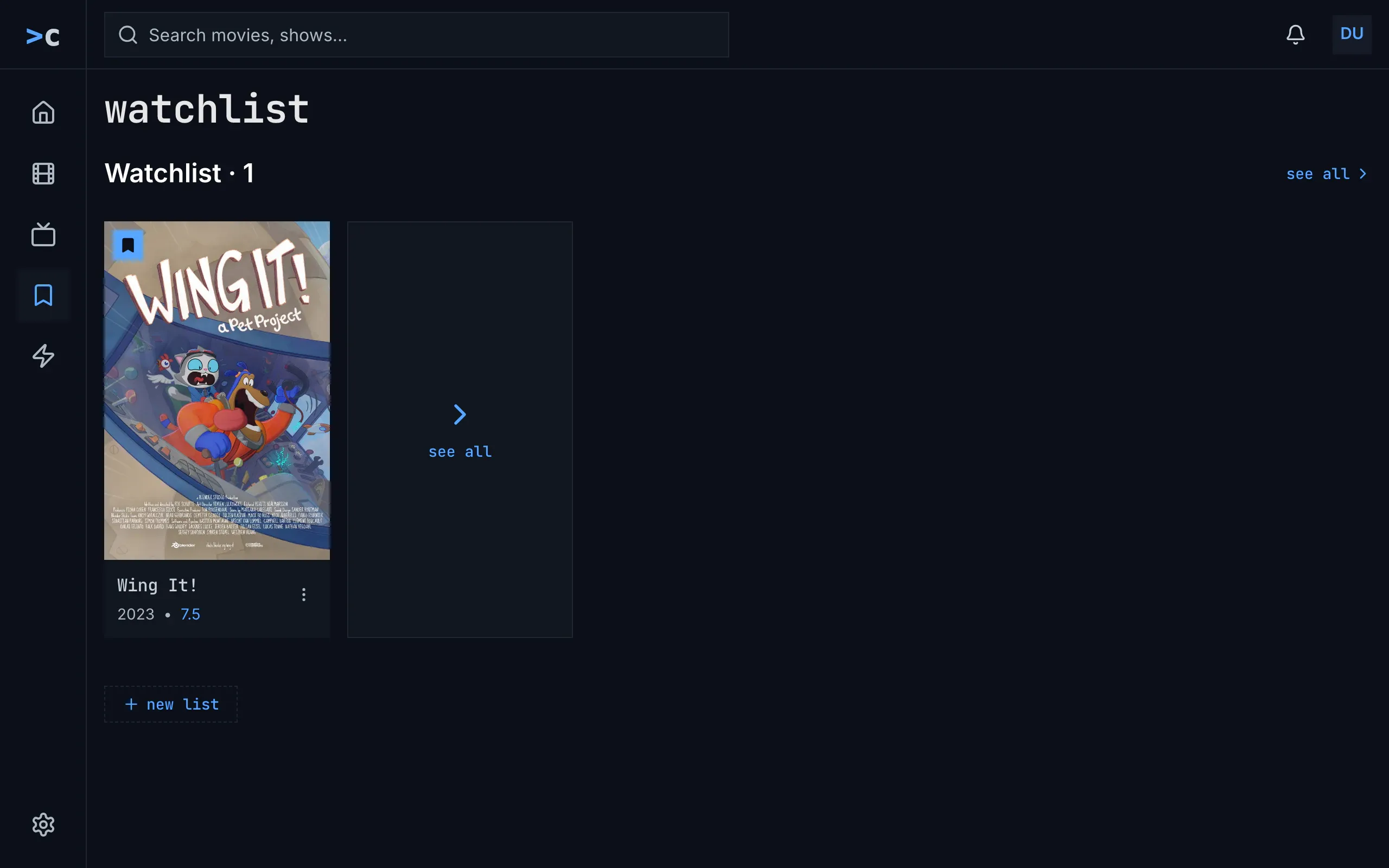
Figure 8.1: The web's watchlist as deployed on 6 November 2026, on a computer, at 1280 × 800.
- The heading, “watchlist”, lowercase in the monospace face.
- The row's name, “Watchlist · 1”, in the body face. It opens the list, and so does see all with its chevron at the right of the line.
- A card, as in movies: the poster with the Watchlist's bookmark on blue at its top left, the name in the monospace face, “2023 • 7.5”, and ⋮.
- The see all card, a box as tall as a poster with a chevron and “see all” in blue, at the row's end.
- + new list, blue in the monospace face, in a dashed outline after the rows. It opens a name field in its own place, with “List name” in it, a check to create the list and a cross to cancel.
Figure 8.2 shows the Watchlist opened from its row.
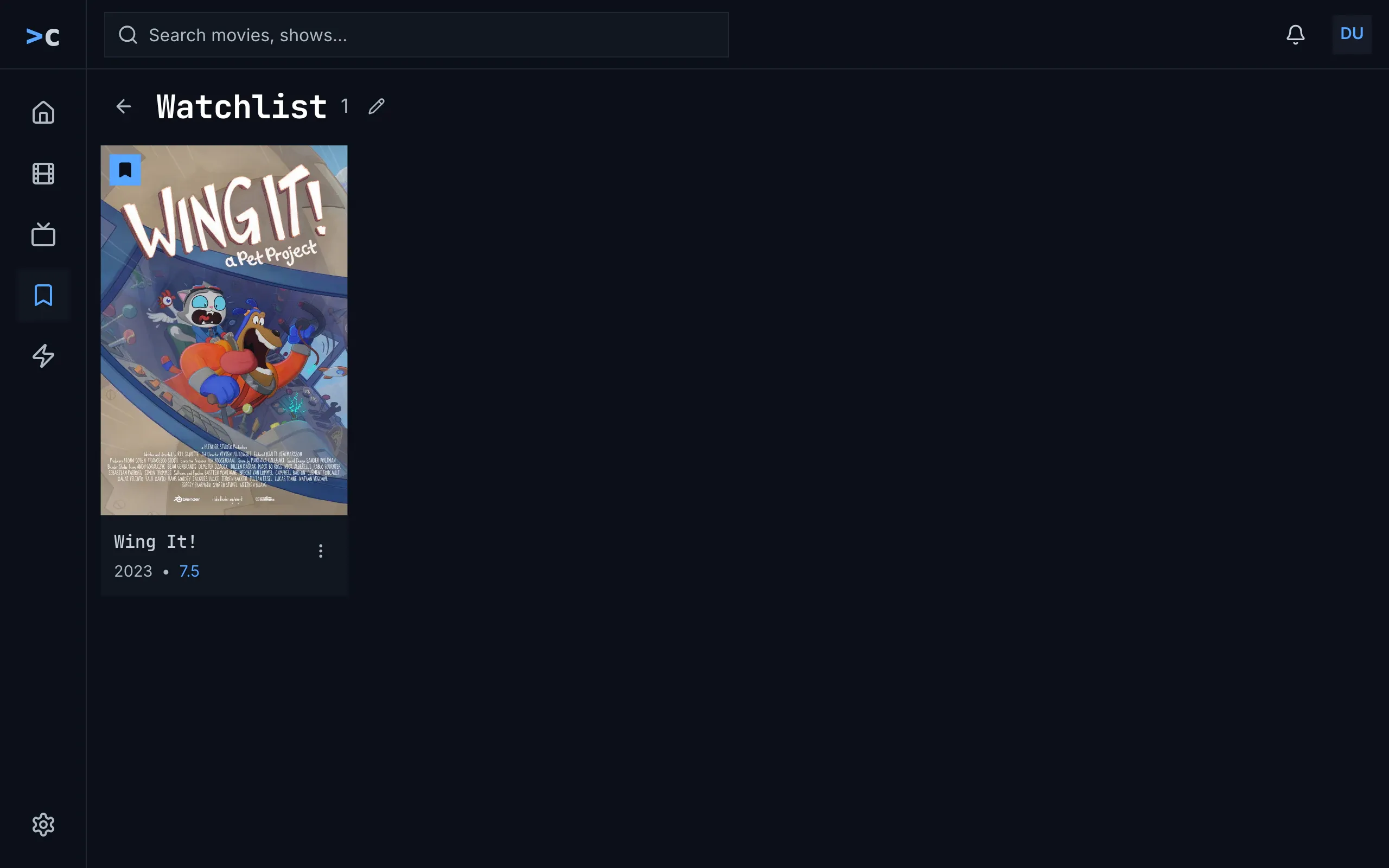
Figure 8.2: The Watchlist opened, as deployed on 6 November 2026, on a computer, at 1280 × 800.
- The back arrow, named “Back to Watchlist”.
- The heading, the list's name, “Watchlist”, with its count alone, “1”.
- The pencil, “Rename list”, there for the Watchlist too. It turns the heading into a field, with a check, “Save name”, and a cross, “Cancel”. A list of the person's own also has a bin, “Delete list”.
- The grid, as in movies: two posters to a line on a phone.
Figure 8.3 shows the watchlist on a phone held upright.
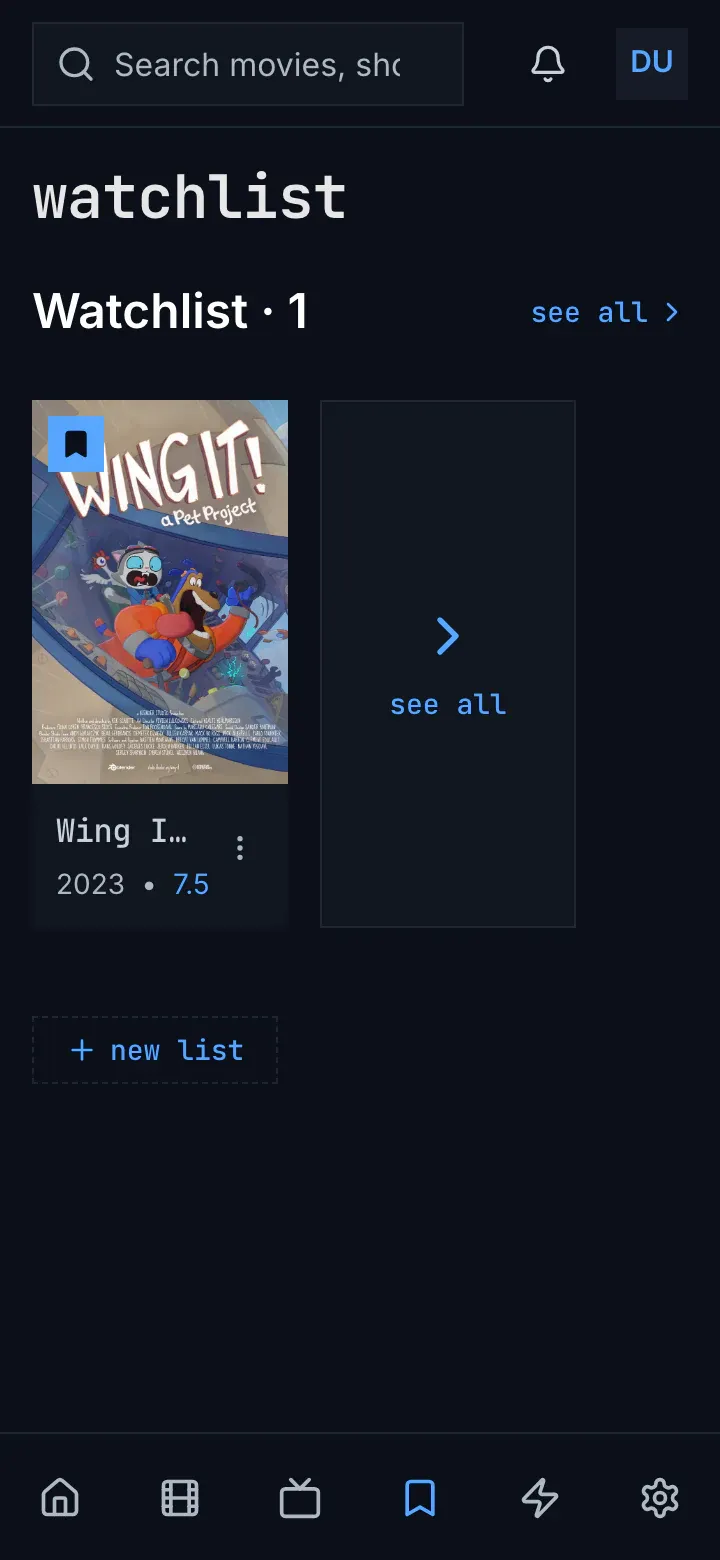
Figure 8.3: The web's watchlist as deployed on 6 November 2026, on a phone held upright, at 360 × 780.
- The row's name with see all at its right, as on a computer.
- The row: the one card, its name cut to “Wing I…”, and the see all card.
- + new list, under the rows.
Figure 8.4 shows it on a phone held sideways.
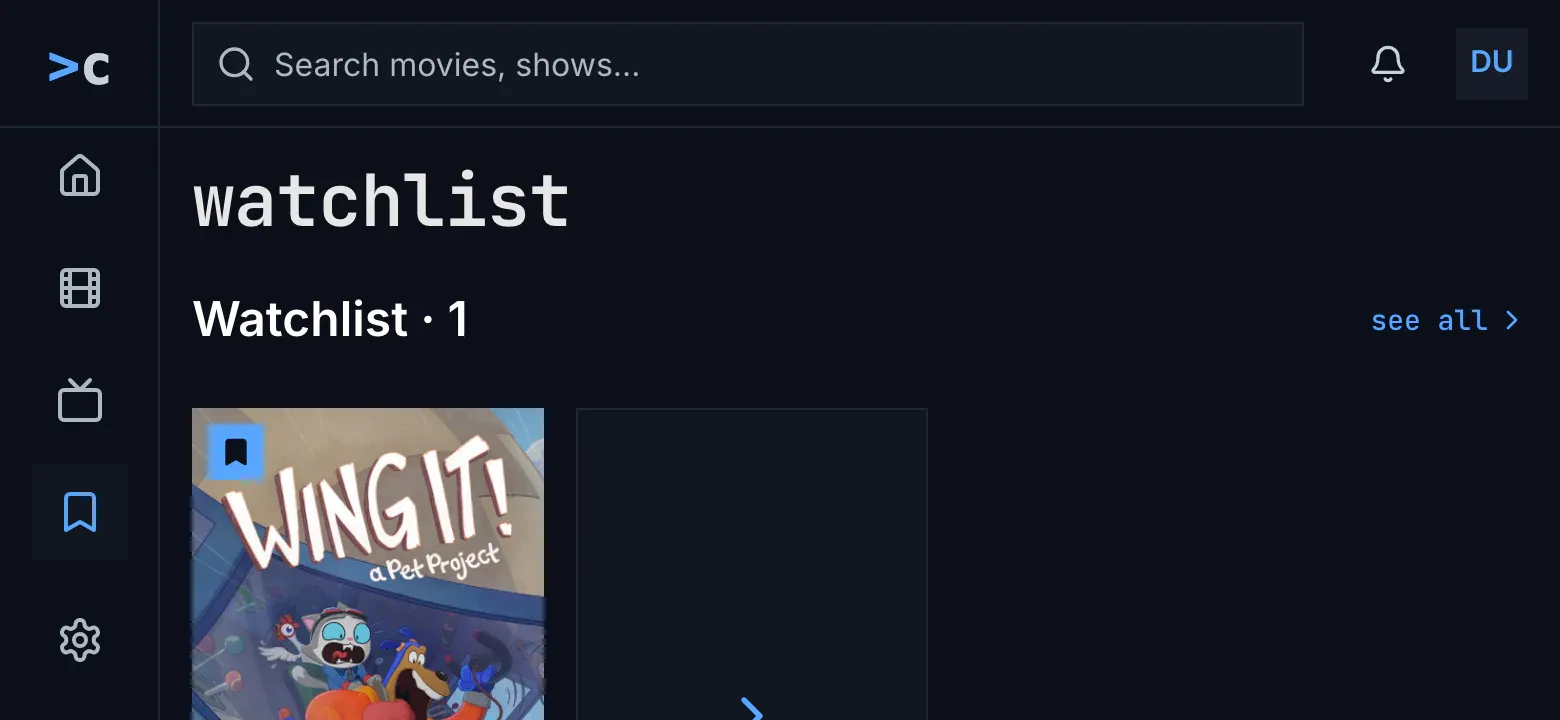
Figure 8.4: The web's watchlist as deployed on 6 November 2026, on a phone held sideways, at 780 × 360.
- The computer's layout, with the side navigation, from 768 px wide (chapter 2).
- The row starts near the screen's foot, so its cards are cut.
The Watchlist's row comes first, then the person's own lists in the order they were created, and a row holds the 12 titles added last, the newest first. An empty row says “Save titles with the + button on any movie or show.”, though a title's page has a bookmark and no + button, and a row that couldn't load says “couldn't load this list” with the reason and try again. An empty name in the new list's field says “Enter a name”, and a name the server refuses, one already taken or one more list than an account may have, says “request failed (409)”, because the web doesn't read the server's answer. The new list's row comes at the end, empty.
Deleting asks with the browser's own question, “Delete "Sunday nights"? Its items will be removed from the list.”, and goes back to the rows. An empty list says “This list is empty.” over “Add titles from a movie or show page to see them here.” A saved episode has a card of its own, named after the episode, “Earthfall”, with “S01E01 · Earthfall” under it. An opened list has no address of its own, so back from a title's page goes to the rows. While the lists load, the spinner turns alone under the heading, and couldn't load says “couldn't load your watchlists” with the reason, try again and details.
8.2.2 The phone app
Section titled “8.2.2 The phone app”The phone app's heading is “Watchlist”, with its capital. Its rows have the web's names, “Watchlist · 5”, and end with a “See all” card, and its cards have no menu. A “New list” chip with a + follows the rows. It opens a dialog, “New list”, with “List name” in its field and “Cancel” and “Create”, the last one greyed while the name is empty. A name it can't take gets a red line under the field: “A list with that name already exists.”, “You've reached the maximum number of lists.”, “Enter a name between 1 and 60 characters.” or “Couldn't save the list. Try again.” Rename, “Rename list” with “Save”, and delete are icons on the person's own lists only. Deleting asks “Delete “Sunday nights”?” with “This removes the list and everything in it. Titles stay in your other lists.” and a red “Delete”. An opened list counts its titles as “· 4” beside its name. A row that couldn't load, with nothing shown before, turns the whole view into “couldn't load your watchlists”.
8.2.3 Android TV
Section titled “8.2.3 Android TV”Android TV's heading is “your lists”, with “new list” at its end. A row's name, “Watchlist · 5”, takes the focus, and OK opens the list. The name dialog, “new list” or “rename list”, has “List name…” in its field and “Press the on-screen Done key to save, BACK to cancel.” under it, over the system's keyboard, and no buttons; it closes as Done is pressed, and a name the server refuses is lost without a word. Every list has “rename list”, the Watchlist too. Deleting asks with “cancel”, which has the focus, and “delete list” in the amber outline: ““Sunday nights” is deleted, with the 4 titles saved in it. They stay in the library and in your other lists.” An opened list has “back”, “· 4” beside its name, and “4 saved” under its grid. While the lists load, “Loading your lists…” stands in the middle.
8.2.4 Samsung TV
Section titled “8.2.4 Samsung TV”The Samsung TV's heading is “Your lists”, with a “New list” chip beside it, and the Watchlist's row says “DEFAULT” beside its name. A name is typed on a keyboard that covers the screen, headed “New list” or “Rename list”, with lowercase letters, digits and signs. An opened list has “Back”, “Rename”, the Watchlist too, and “Delete”, which deletes at once without asking. Failures say “Couldn't create that list.”, “Couldn't rename that list.”, “Couldn't delete that list.” and “Couldn't load your lists.”, the last one without try again.
8.2.5 Feature by feature
Section titled “8.2.5 Feature by feature”The table compares the four apps feature by feature. “—” is a feature the app doesn't have.
| Feature | Web | Phone app | Android TV | Samsung TV |
|---|---|---|---|---|
| The heading | “watchlist” | “Watchlist” | “your lists” | “Your lists” |
| The rows | one per list, the Watchlist first, then by creation | the same | the same | in the server's order, which is the same |
| A row's name | “Watchlist · 1” in the body face; it opens the list | “Watchlist · 5”; it opens the list | “Watchlist · 5”, a focus stop; OK opens the list | “Watchlist · 5” and “DEFAULT”, a focus stop |
| A row's titles | the 12 added last, the newest first | the same | the same | the same |
| see all | beside the row's name, and a card at its end | a “See all” card | a “see all” card | a “See all” card |
| The cards | as in movies, with ⋮ | no menu | no menu | no menu |
| A saved episode | its own card: “Earthfall”, “S01E01 · Earthfall” | its own card: its name and its code | its own card: its name, its code and the year with the rating | its own card: its name and its code |
| A new list | “+ new list” after the rows: a field in its place, “List name”, a check and a cross | “New list” after the rows: a dialog, “List name”, “Cancel”, “Create” | “new list” beside the heading: a dialog, “List name…”, the system's keyboard, no buttons | “New list” beside the heading: a keyboard over the screen |
| A name it can't take | “Enter a name”; refused by the server, “request failed (409)” | the button greyed while the name is empty; a red line under the field, by cause | an empty name closes the dialog; a refused one is lost without a word | an empty name does nothing; “Couldn't create that list.” |
| Rename | a pencil, the Watchlist too: a field in the heading's place | a pencil, the person's own lists: “Rename list”, “Save” | “rename list”, the Watchlist too | “Rename”, the Watchlist too |
| Delete | a bin, the person's own lists: the browser's question | a bin, the person's own lists: “Delete “Sunday nights”?”, a red “Delete” | “delete list”, the person's own lists: the question, cancel first | “Delete”, the person's own lists: at once |
| An opened list | the arrow, the name, the count alone, “1” | the arrow, the name, “· 4” | “back”, the name, “· 4”, and “4 saved” under the grid | “Back”, the name, “· 4” |
| Back from a title's page | the rows: the list has no address | the list | the list | the rows |
| An empty row | “Save titles with the + button on any movie or show.” | the same | the Watchlist: “Add titles with the bookmark on a movie's or a show's page.”; a list of the person's own: “Add titles with the arrow beside the bookmark on a movie's or a show's page.” | “Save titles with the + button on any movie or show.” |
| An empty list | “This list is empty.”, “Add titles from a movie or show page to see them here.” | the Watchlist: “Add titles with the bookmark on a movie's or a show's page.”; a list of the person's own: “Add titles with the arrow beside the bookmark on a movie's or a show's page.” | ““For the kids” is empty. Save titles with the + button on any movie or show.” | the same as Android TV |
| Loading | a spinner alone | a spinner alone | “Loading your lists…”; a row “Loading…” | a spinner, “Loading your lists…”; a row “Loading…” |
| Couldn't load | “couldn't load your watchlists”, the reason, try again, details | the same, also when one row couldn't load | the same; a row that couldn't load looks empty | “Couldn't load your lists.”, no try again; a row that couldn't load looks empty |
| A row that couldn't load | “couldn't load this list”, the reason, try again | the whole view's couldn't load | looks empty | looks empty |
The server keeps a name between 1 and 60 bytes, not characters, so a name with accents ends before 60 characters, and refuses a name the account already has, whatever the capitals, and a 51st list.
8.3 The watchlist on a computer
Section titled “8.3 The watchlist on a computer”Figure 8.5 shows the watchlist on a computer, with the Watchlist and a list called Sunday nights.
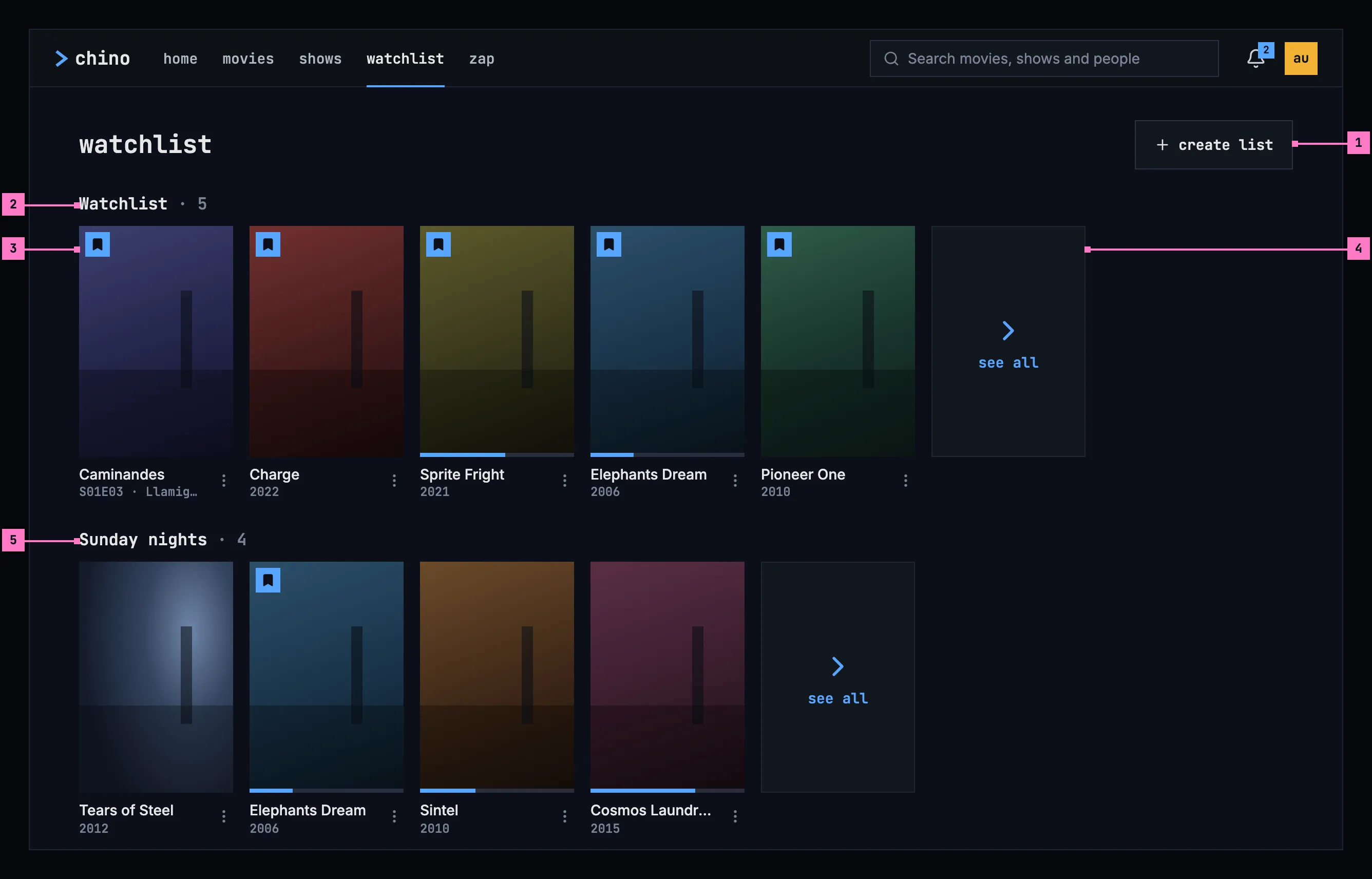
Figure 8.5: The watchlist on a computer, at 1280 × 800.
- create list starts a list of the person's own (section 8.7.1).
- The row's name: the list's name and how many titles it holds, “Watchlist · 5”. Choosing it opens the list (section 8.6).
- A card, as in movies and shows (chapter 5), with its status marks and ⋮. An episode shows as its show's card, with the episode under the name: “S01E03 · Llamigos”. Choosing it opens the show's page on that episode (chapter 6).
- see all, the row's last card, opens the list, as the row's name does.
- A list of the person's own follows the Watchlist, in a row of its own. The bookmark on a card means the Watchlist in every row, so Elephants Dream carries it in Sunday nights too.
The Watchlist's row comes first, then the person's lists in the order they were created. A row holds the 12 titles added last, the newest first.
8.4 The watchlist on a phone
Section titled “8.4 The watchlist on a phone”The phone shows the watchlist upright and sideways. Figure 8.6 shows it upright and figure 8.7 sideways. The parts are those of figure 8.5; the numbers mark where the phone differs, and section 8.4.3 says what happens when the phone is turned.
8.4.1 Held upright
Section titled “8.4.1 Held upright”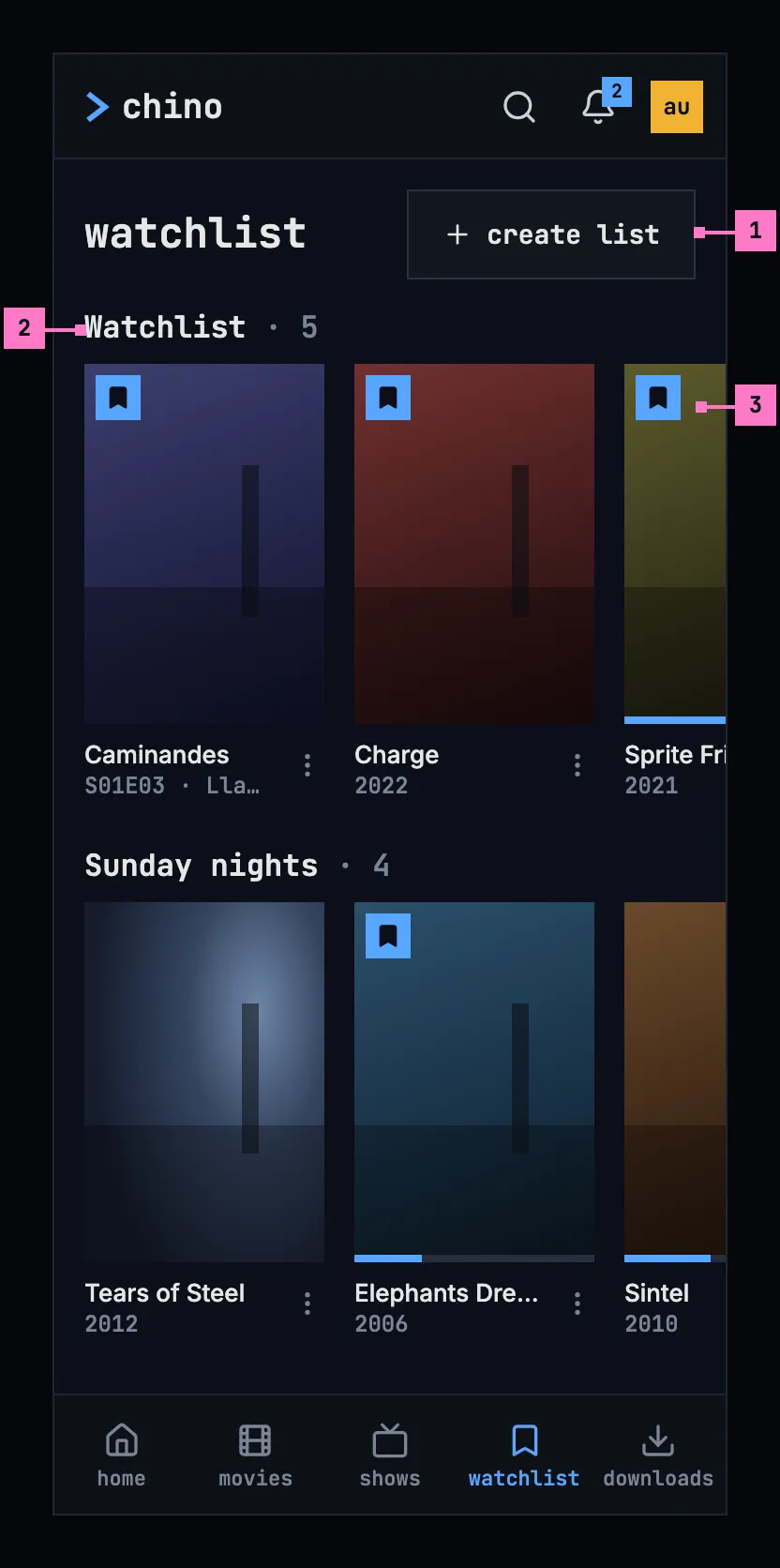
Figure 8.6: The watchlist on a phone held upright, at 360 × 780 dp.
- create list stays at the end of the heading's line, in reach without scrolling past the lists.
- The rows come one under the other, as on a computer.
- A row shows two cards and a part of the next, so it's plain that it goes on sideways.
The web on a phone held upright has the layout of figure 8.6, with its own tabs (chapter 2).
8.4.2 Held sideways
Section titled “8.4.2 Held sideways”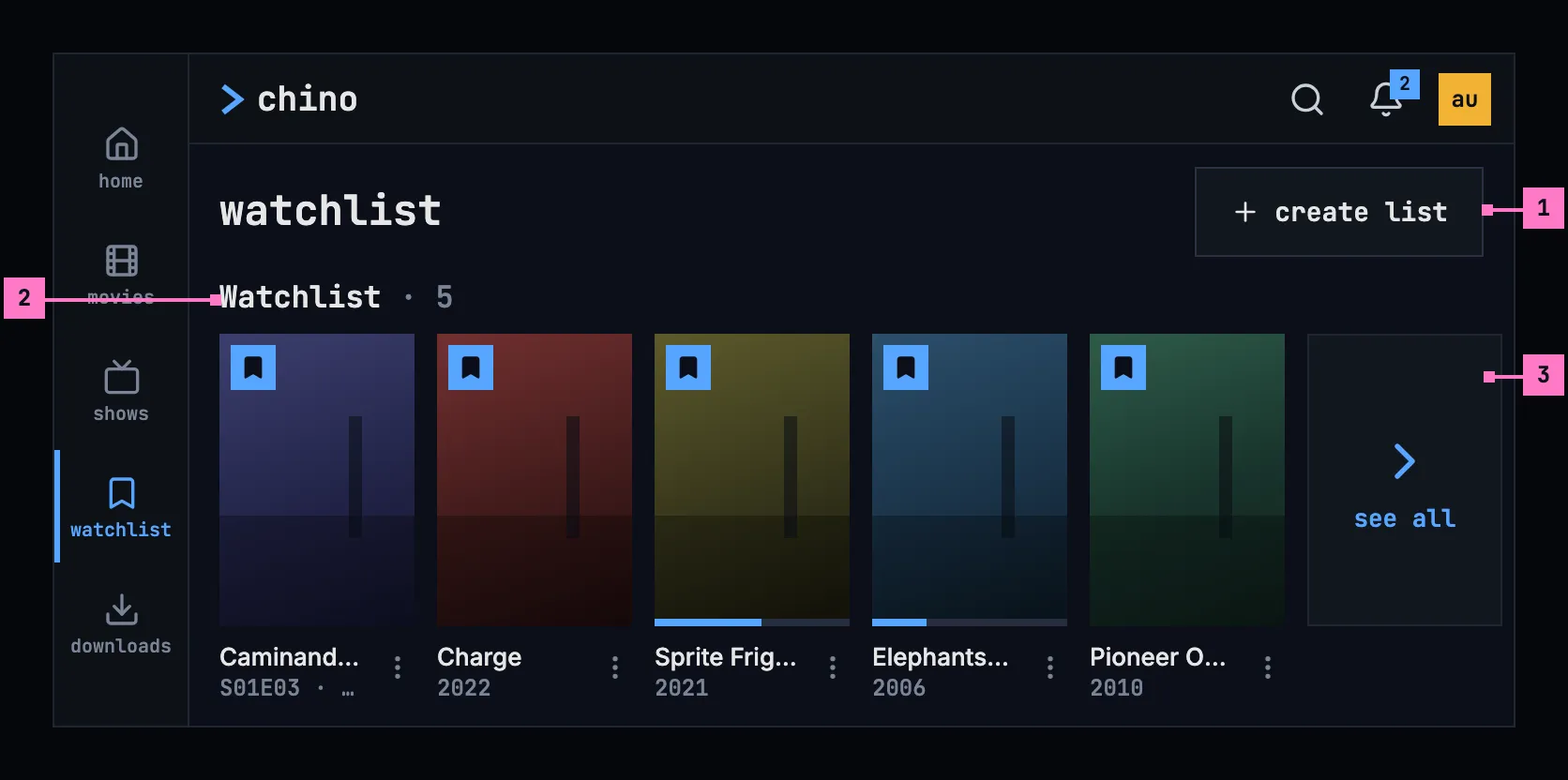
Figure 8.7: The watchlist on a phone held sideways, at 780 × 360 dp.
- create list, at the end of the heading's line, as upright.
- The row's name, with the row right under it.
- A row shows five smaller cards and its see all card, so a whole card, its name and its year too, shows under the heading. The next row starts under the screen's foot.
The tabs run down the left edge as a rail while the phone is sideways (chapter 2). The web on a phone held sideways has the layout of figure 8.7.
8.4.3 Turning the phone
Section titled “8.4.3 Turning the phone”Turning the phone keeps the watchlist where it was: the same row at the top of the screen, each row scrolled sideways as far as before, and an open list, a dialog or the typing in a dialog's field as they were. Upright, a row has cards 128 dp wide; sideways they are smaller, 104 dp, so a whole card fits under the heading.
8.5 The watchlist on a TV
Section titled “8.5 The watchlist on a TV”Figure 8.8 shows the watchlist on a TV, with the focus on the first card.
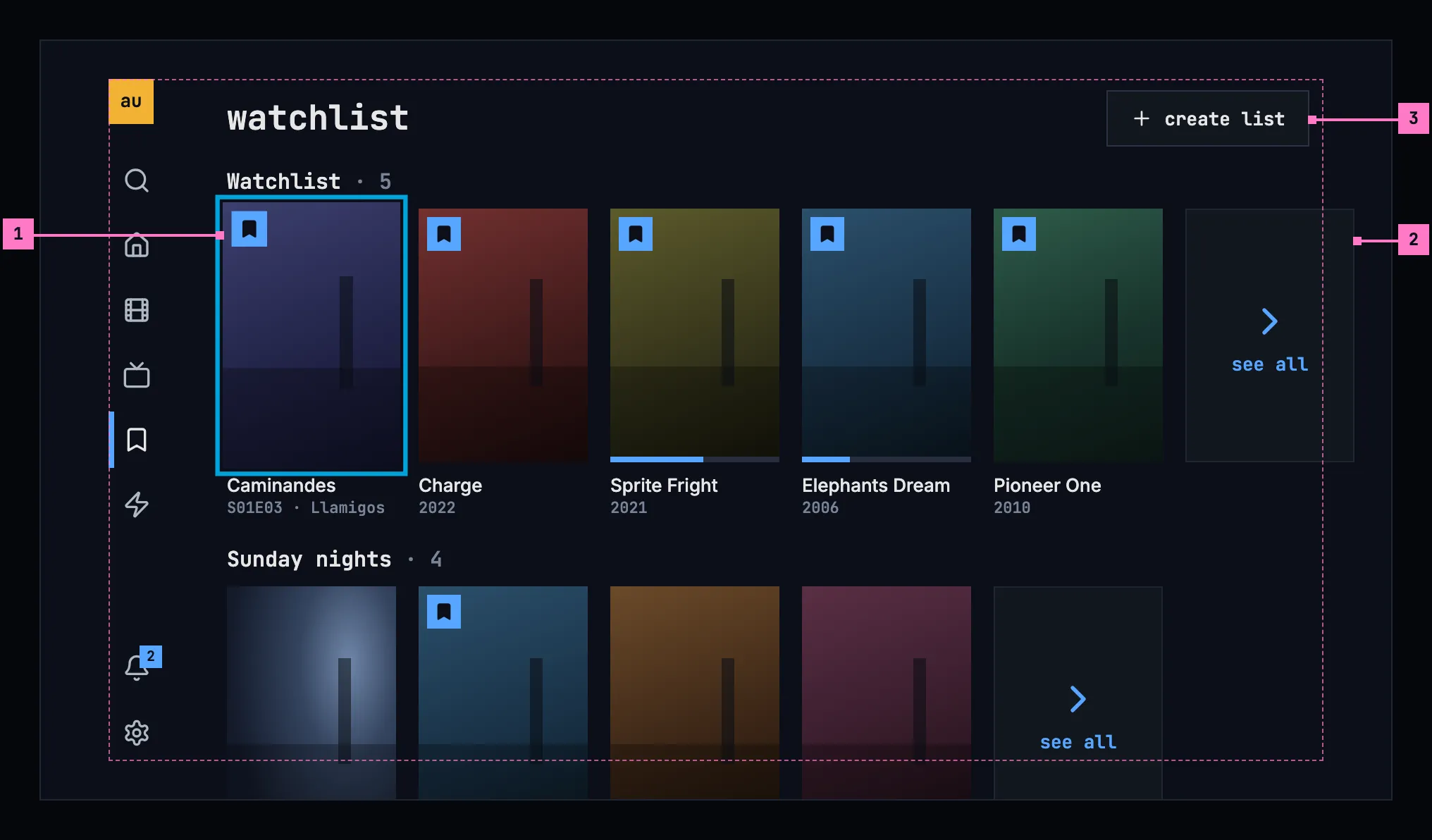
Figure 8.8: The watchlist on a TV, at 960 × 540 dp.
- The focus on a card, the ring 2 dp outside the poster and the card 5 % larger. Right from the rail lands on the first card of the Watchlist's row. Left and right move along a row, up and down from row to row; a row's name takes the focus too, and OK on it opens the list.
- A row runs past the safe area to the edge of the screen, as home's rows do (chapter 4). The row scrolls when the focus reaches the outline, so the focus never leaves it.
- create list, at the top inside the safe area. Up from the first row reaches it.
Holding OK on a card opens its menu, as in movies and shows.
8.6 A list
Section titled “8.6 A list”Figure 8.9 shows one of the person's lists, Sunday nights, opened from its row.
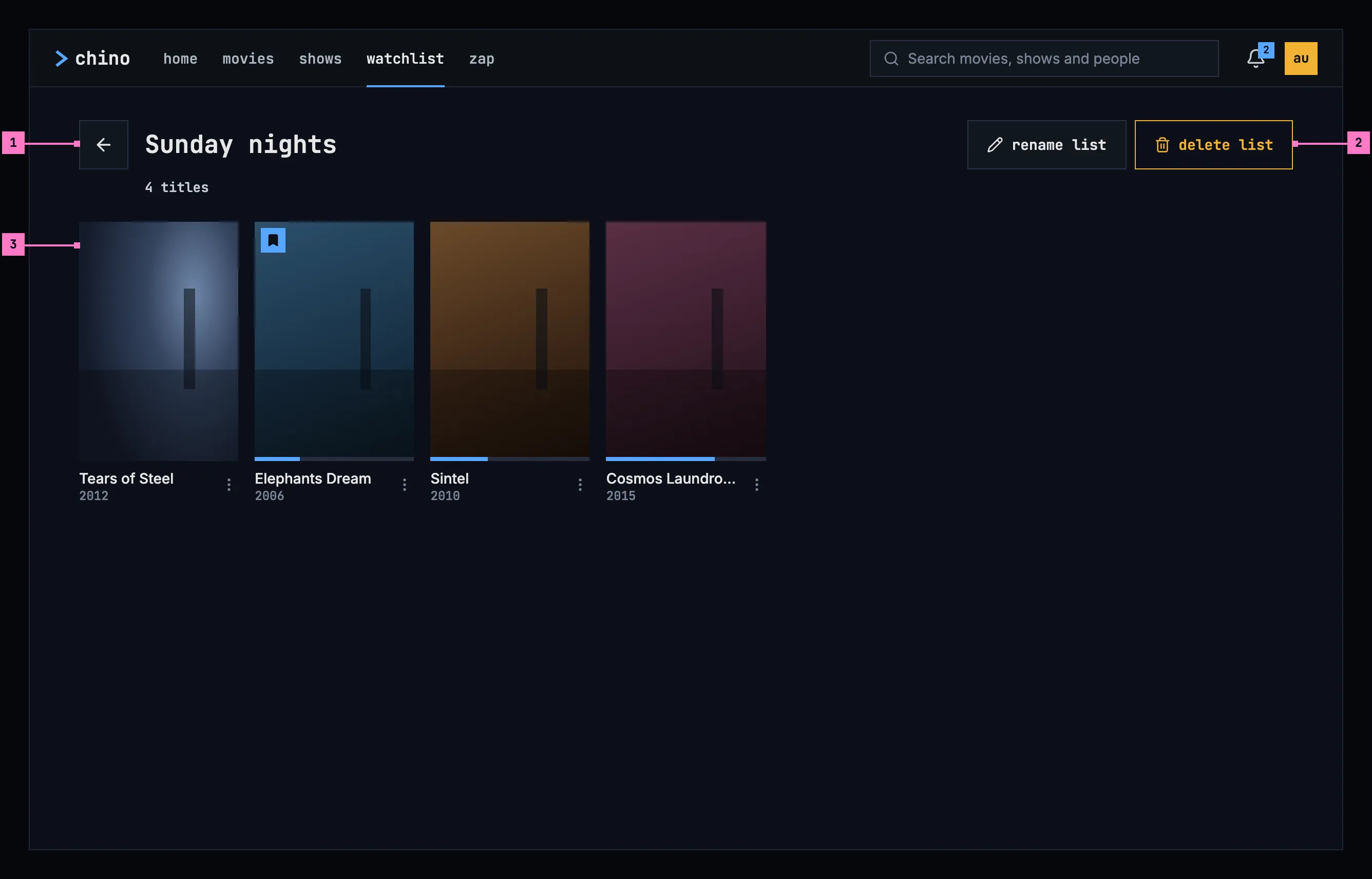
Figure 8.9: A list on a computer: Sunday nights.
- The back arrow returns to the watchlist. The heading is the list's name as the person wrote it, and the line under it counts its titles: “4 titles”, “1 title”.
- rename list and delete list (section 8.7). delete list has the design system's amber outline, as every action that deletes has.
- The grid holds all of the list's titles, the one added last first, laid out as the grid of movies (chapter 5).
The Watchlist opens the same way, without rename list and delete list. It is the list every account has, and the bookmark on every title's page and every card's mark refer to it by name (chapter 6), so it keeps its name and can't be deleted.
A title leaves a list on its page: the bookmark takes it out of the Watchlist, and the list picker out of the person's own lists (chapter 6). Back from the page, the list shows without it, scrolled as it was. On the web, an opened list has an address of its own, so back, a reload and a shared link open it again.
8.7 Creating, renaming and deleting a list
Section titled “8.7 Creating, renaming and deleting a list”8.7.1 Creating a list
Section titled “8.7.1 Creating a list”Figure 8.10 shows the dialog that create list opens, after the person tried a name they already use.
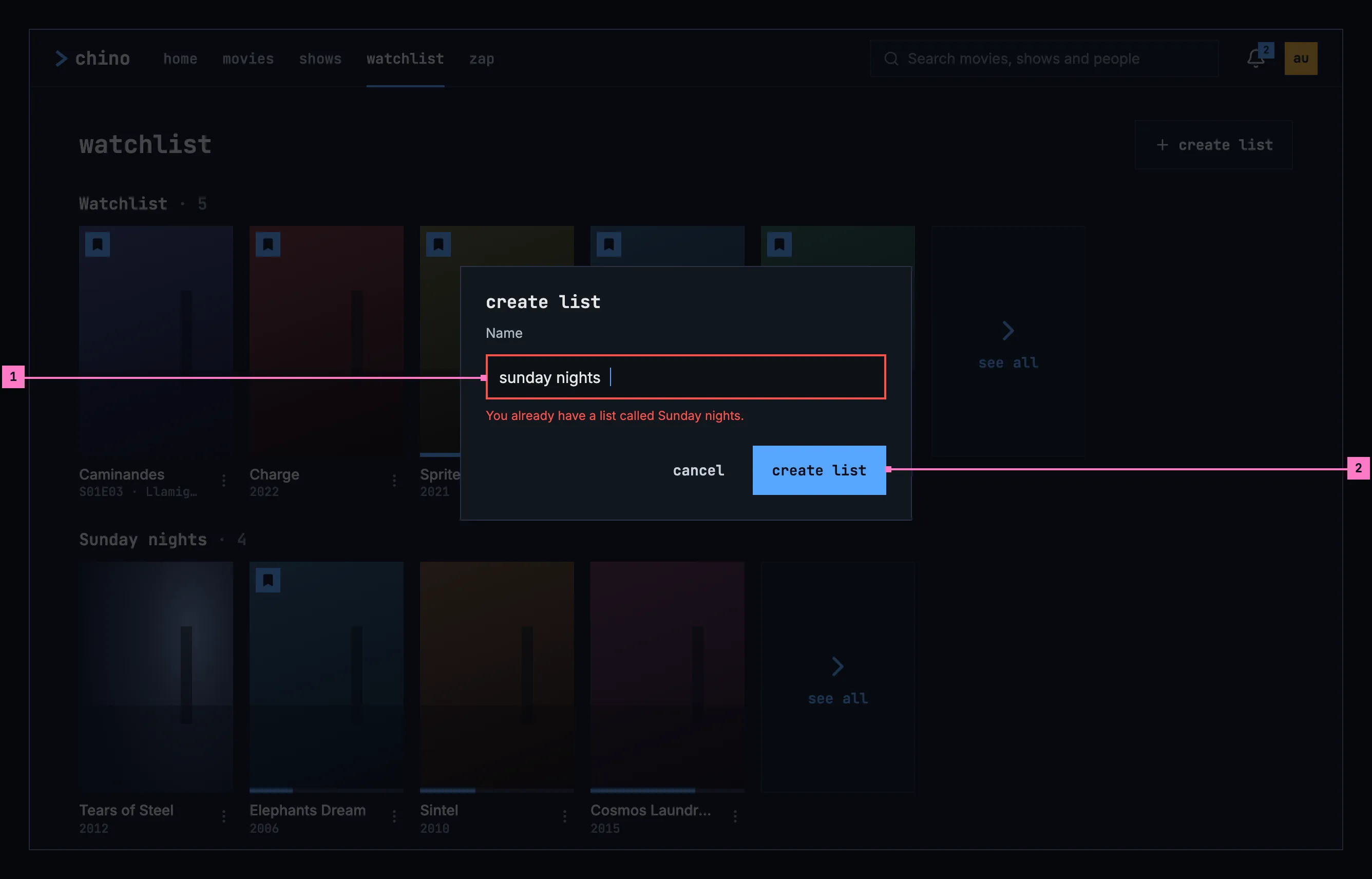
Figure 8.10: Creating a list, with a name already taken, on a computer.
- Name takes the list's name. It is checked when the person presses create list, not while they type. A name already in use gets “You already have a list called Sunday nights.” under the field, in red, and an empty one “Give the list a name.”; the field keeps what was typed, and the focus goes back to it.
- create list creates the list and closes the dialog, and the list's row appears at the end of the watchlist, empty. Enter in the field does the same. cancel, Esc or a press beside the dialog closes it, and nothing is created.
The list picker on a title's page (chapter 6) starts a list with the same dialog, and the title goes into the new list at once. On a TV, the name is typed on the keyboard that search uses (chapter 9), under the field, and back is cancel.
8.7.2 Renaming a list
Section titled “8.7.2 Renaming a list”rename list opens the same dialog, headed rename list, with the list's name in the field and rename list to confirm. The new name shows at once, in the list's row and in the list picker.
8.7.3 Deleting a list
Section titled “8.7.3 Deleting a list”Deleting asks first, because a deleted list can't be brought back. Figure 8.11 shows the question.
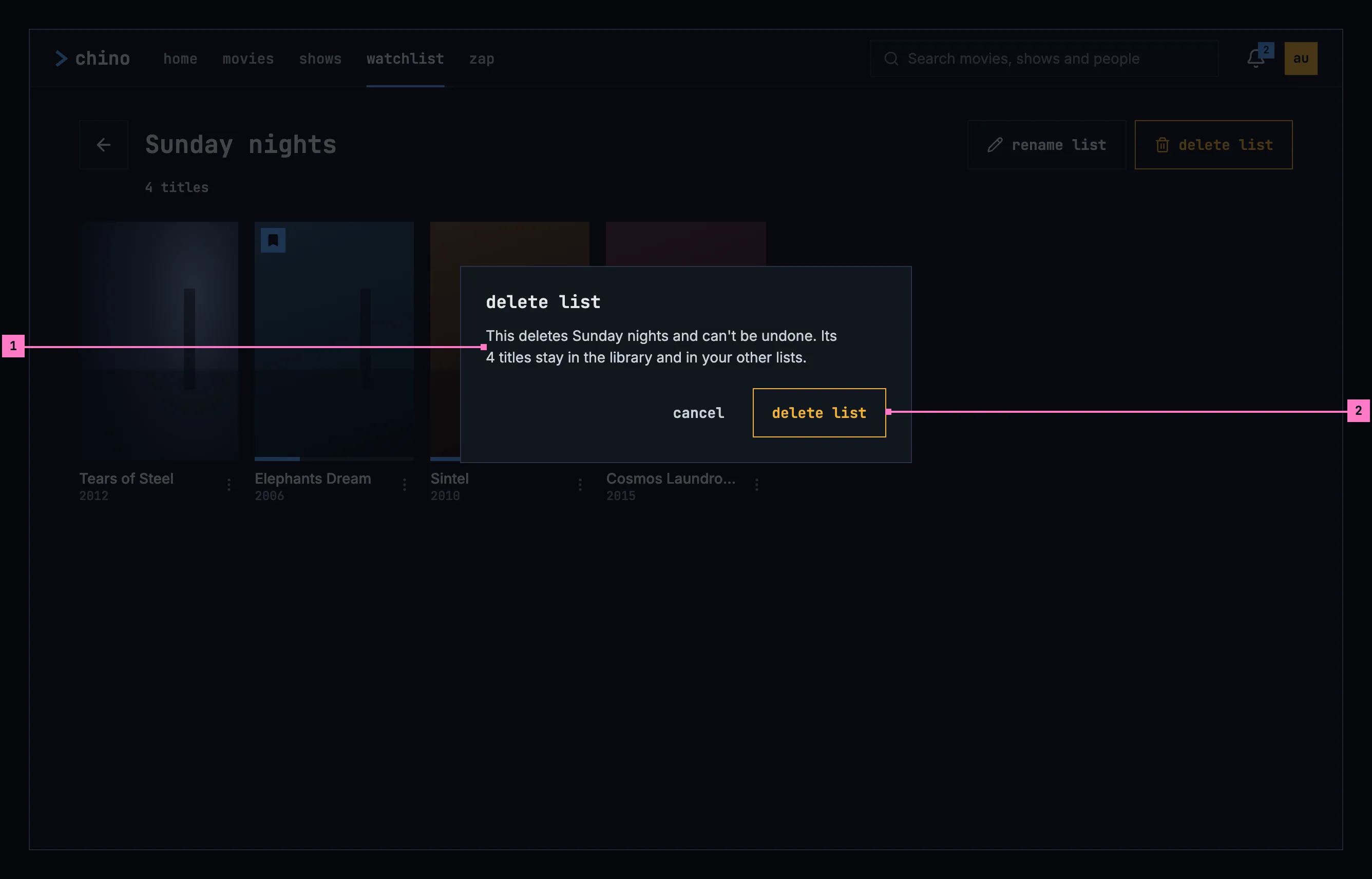
Figure 8.11: Deleting a list, on a computer.
- What goes, and what stays: “This deletes Sunday nights and can't be undone. Its 4 titles stay in the library and in your other lists.” A list of one title says “Its title stays in the library and in your other lists.”, and an empty list leaves the second sentence out.
- delete list, with the amber outline, repeats the dialog's title. cancel comes first and takes the focus, so a stray Enter or OK deletes nothing.
After the delete, the watchlist shows again without the list's row, and on a TV the focus is on create list.
8.7.4 Names and limits
Section titled “8.7.4 Names and limits”- A name has 1 to 60 characters, and spaces at its ends are left out. The field takes no more than 60.
- No two of an account's lists share a name, whatever the capitals: “sunday nights” is taken while there is a Sunday nights.
- An account has at most 50 lists, the Watchlist among them. Past that, the dialog says so at its top: “You have as many lists as an account can have. Delete one first.”
- A save that fails for another reason keeps the dialog open with what was typed, and says why at its top: “Couldn't create the list.” or “Couldn't rename the list.”, then the cause's sentence of chapter 17.
8.8 What a list holds
Section titled “8.8 What a list holds”- A list holds movies, shows and episodes, the one added last first, and a title can be in several lists at once.
- The count beside a row's name and under a list's heading counts the titles the list holds.
- The lists belong to the account, so they are the same in every app: a title added on a phone is in the watchlist on the TV.
8.9 Changes
Section titled “8.9 Changes”Every difference between section 8.2 and the target is one change in the table. A change names the apps it is built in, what they do today and the target, with the figure or the section that sets it out; it is built as its row says, and nothing else changes with it. Each change starts as proposed; once the owner approves it, it is built, one change at a time. A target that starts with “Recommended” was an open decision, or takes away something an app has today. What a card shows under its poster is chapter 5's, and the list picker on a title's page is chapter 6's.
| No. | Change | Apps | Today | Target | Status |
|---|---|---|---|---|---|
| 8.C1 | The view's heading | Phone app, Android TV, Samsung TV | Phone app: “Watchlist”. Android TV: “your lists”. Samsung TV: “Your lists” | watchlist (figure 8.5) | proposed |
| 8.C2 | The row's name | Web, Samsung TV | Web: “Watchlist · 1” in the body face. Samsung TV: “DEFAULT” beside the Watchlist's name | the list's name in the monospace face, the count quieter, “Watchlist · 5”, without a label (figure 8.5, part 2) | proposed |
| 8.C3 | see all, the row's last card | Web, Phone app, Samsung TV | Web: see all also at the right of the row's name. Phone app, Samsung TV: “See all” | Recommended: the row's name and the see all card at its end, lowercase (figure 8.5, parts 2 and 4) | proposed |
| 8.C4 | create list, and its dialog | Web, Phone app, Android TV, Samsung TV | Web: “+ new list” in a dashed outline after the rows, a field in its place with a check and a cross. Phone app: a “New list” chip after the rows, a dialog “New list” with “Create”. Android TV: “new list” beside the heading, a dialog without buttons over the system's keyboard. Samsung TV: “New list” beside the heading, a keyboard over the whole screen, lowercase letters only | create list at the end of the heading's line; the dialog of figure 8.10, with Name, cancel and create list; on a TV the keyboard search uses, under the field (section 8.7.1) | proposed |
| 8.C5 | A name the dialog can't take | Web, Phone app, Android TV, Samsung TV | Web: “Enter a name”, and a refused name “request failed (409)”. Phone app: create list greyed while the name is empty; “A list with that name already exists.”, “You've reached the maximum number of lists.”, “Enter a name between 1 and 60 characters.”, “Couldn't save the list. Try again.” Android TV: an empty name closes the dialog, a refused one is lost without a word. Samsung TV: an empty name does nothing; “Couldn't create that list.”, “Couldn't rename that list.” on the rows | checked when create list is pressed, the dialog open with what was typed: “Give the list a name.”, “You already have a list called Sunday nights.”, and at its top “You have as many lists as an account can have. Delete one first.” or “Couldn't create the list.” with the cause's sentence (section 8.7.4) | proposed |
| 8.C6 | Renaming in the same dialog | Web, Phone app, Android TV, Samsung TV | Web: the heading turns into a field, with a check, “Save name”. Phone app: “Rename list” with “Save”. Android TV: “rename list” without buttons. Samsung TV: the keyboard, “Rename list” | the dialog of figure 8.10 headed rename list, the name in its field, rename list to confirm (section 8.7.2) | proposed |
| 8.C7 | The Watchlist keeps its name | Web, Android TV, Samsung TV, the server | the Watchlist can be renamed: the web's pencil, Android TV's “rename list”, Samsung TV's “Rename”; the server renames it | Recommended: no rename list on the Watchlist, and the server refuses to rename it (section 8.6) | proposed |
| 8.C8 | Deleting asks in plain words | Web, Phone app, Android TV, Samsung TV | Web: the browser's own question, “Delete "Sunday nights"? Its items will be removed from the list.” Phone app: “Delete “Sunday nights”?”, “This removes the list and everything in it. Titles stay in your other lists.”, a red “Delete”. Android TV: ““Sunday nights” is deleted, with the 4 titles saved in it. They stay in the library and in your other lists.” Samsung TV: deletes at once, without asking | figure 8.11: delete list in the amber outline, cancel first with the focus, “This deletes Sunday nights and can't be undone. Its 4 titles stay in the library and in your other lists.” | proposed |
| 8.C9 | An opened list: its count and its buttons | Web, Phone app, Android TV, Samsung TV | Web: the count alone, “1”, and icons to rename and delete. Phone app: “· 4” and icons. Android TV: “back”, “· 4”, and “4 saved” under the grid. Samsung TV: “Back”, “· 4”, “Rename”, “Delete” | figure 8.9: the back arrow, “4 titles” under the name, rename list and delete list in words, delete list amber | proposed |
| 8.C10 | Where titles come from | Web, Phone app, Android TV, Samsung TV | “Save titles with the + button on any movie or show.” in the empty rows of the web, the phone app and Samsung TV, and in Android TV's and Samsung TV's empty lists, though a title's page has no + button; the web's empty list “This list is empty.”, “Add titles from a movie or show page to see them here.”; the phone app and Android TV: “Add titles with the bookmark on a movie's or a show's page.” | the sentences of section 8.10: “Add titles with the bookmark on a title's page.”, “Add titles with the arrow beside the bookmark on a title's page.”, “nothing in Sunday nights yet” | proposed |
| 8.C11 | An empty watchlist | Web, Phone app, Android TV, Samsung TV | the Watchlist's row with its empty line | figure 8.12, while the Watchlist is empty and the person has no list of their own | proposed |
| 8.C12 | A saved episode: its show's card | Web, Phone app, Android TV, Samsung TV | the episode's own card, named after the episode; under it “S01E01 · Earthfall” on the web, its code in the apps | the show's card with the episode under the name, “S01E03 · Llamigos”, which opens the show's page on that episode (figure 8.5, part 3) | proposed |
| 8.C13 | The card's menu in the lists | Phone app, Android TV, Samsung TV | the cards in the rows and the lists have no menu | the card's menu of chapter 5, on every card (figure 8.5) | proposed |
| 8.C14 | An opened list's own address | Web, Samsung TV | an opened list has none: back from a title's page goes to the rows | back from a title's page shows the list, scrolled as it was; on the web an address of its own (section 8.6) | proposed |
| 8.C15 | Loading: grey blocks | Web, Phone app, Android TV, Samsung TV | Web, Phone app: a spinner alone. Android TV: “Loading your lists…”. Samsung TV: a spinner with it. Both: a row “Loading…” | grey blocks in the shape of two rows (section 8.10) | proposed |
| 8.C16 | Couldn't load: the lists, or one row | Phone app, Android TV, Samsung TV | Phone app: “couldn't load your watchlists” for the whole view when one row couldn't load. Android TV, Samsung TV: a row that couldn't load looks empty. Samsung TV: “Couldn't load your lists.”, without try again | figure 8.13 when the lists couldn't load; a row that couldn't load says “couldn't load this list” in its place, with the reason and try again (section 8.10) | proposed |
| 8.C17 | The server counts characters | the server | 1 to 60 bytes, so a name with accents ends before 60 characters | 1 to 60 characters, as the field counts them (section 8.7.4) | proposed |
8.10 States
Section titled “8.10 States”The watchlist is drawn in figures 8.5 to 8.9 with everything loaded. Figures 8.12 and 8.13 show two of the states in between.
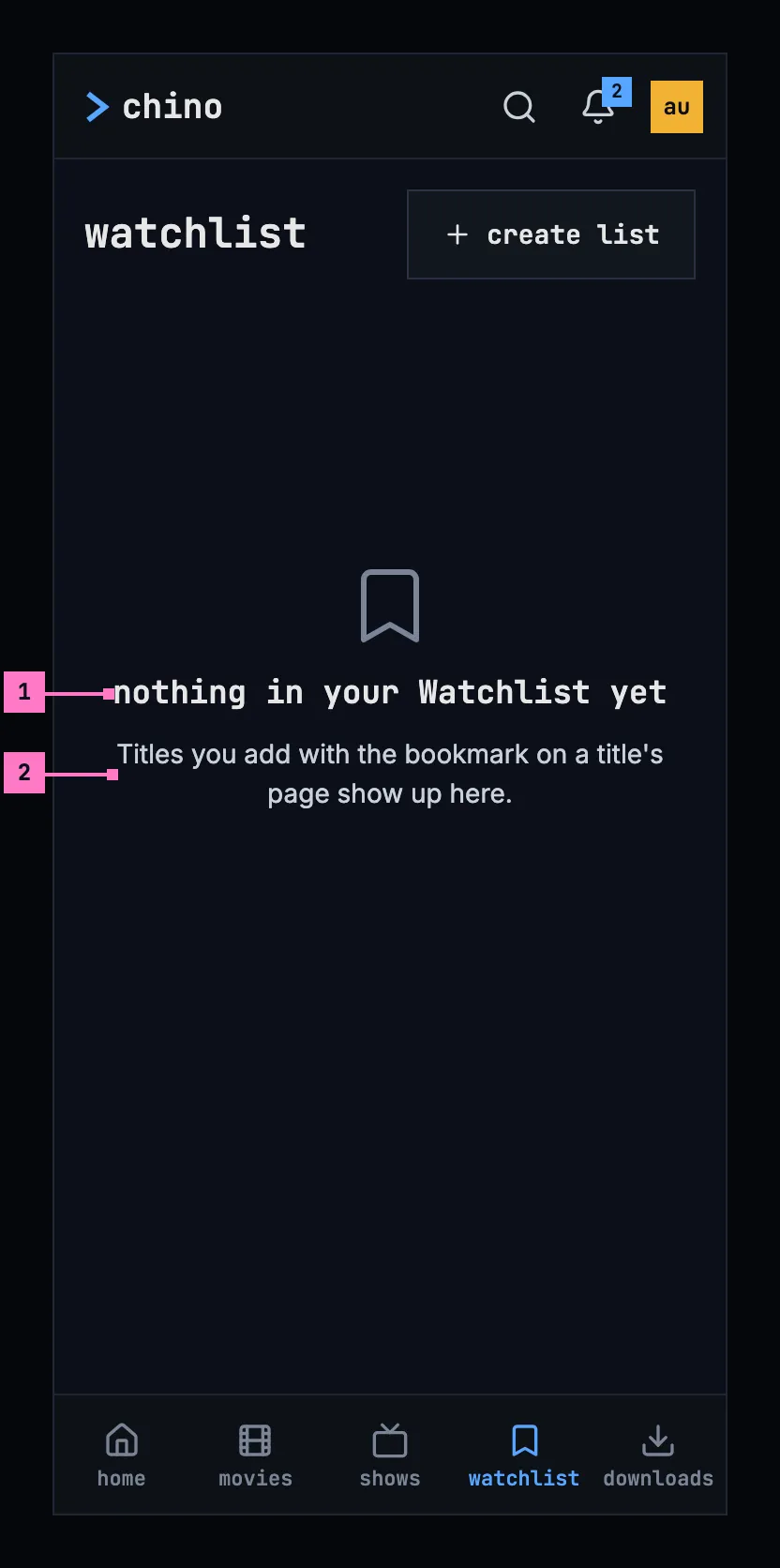
Figure 8.12: An empty watchlist, on a phone.
- nothing in your Watchlist yet: the design system's nothing-yet state, when the Watchlist is empty and the person has no list of their own.
- Where titles come from. The sentence names the bookmark on a title's page. There is nothing to press here, because a title is added on its page; create list stays, for a list of the person's own.
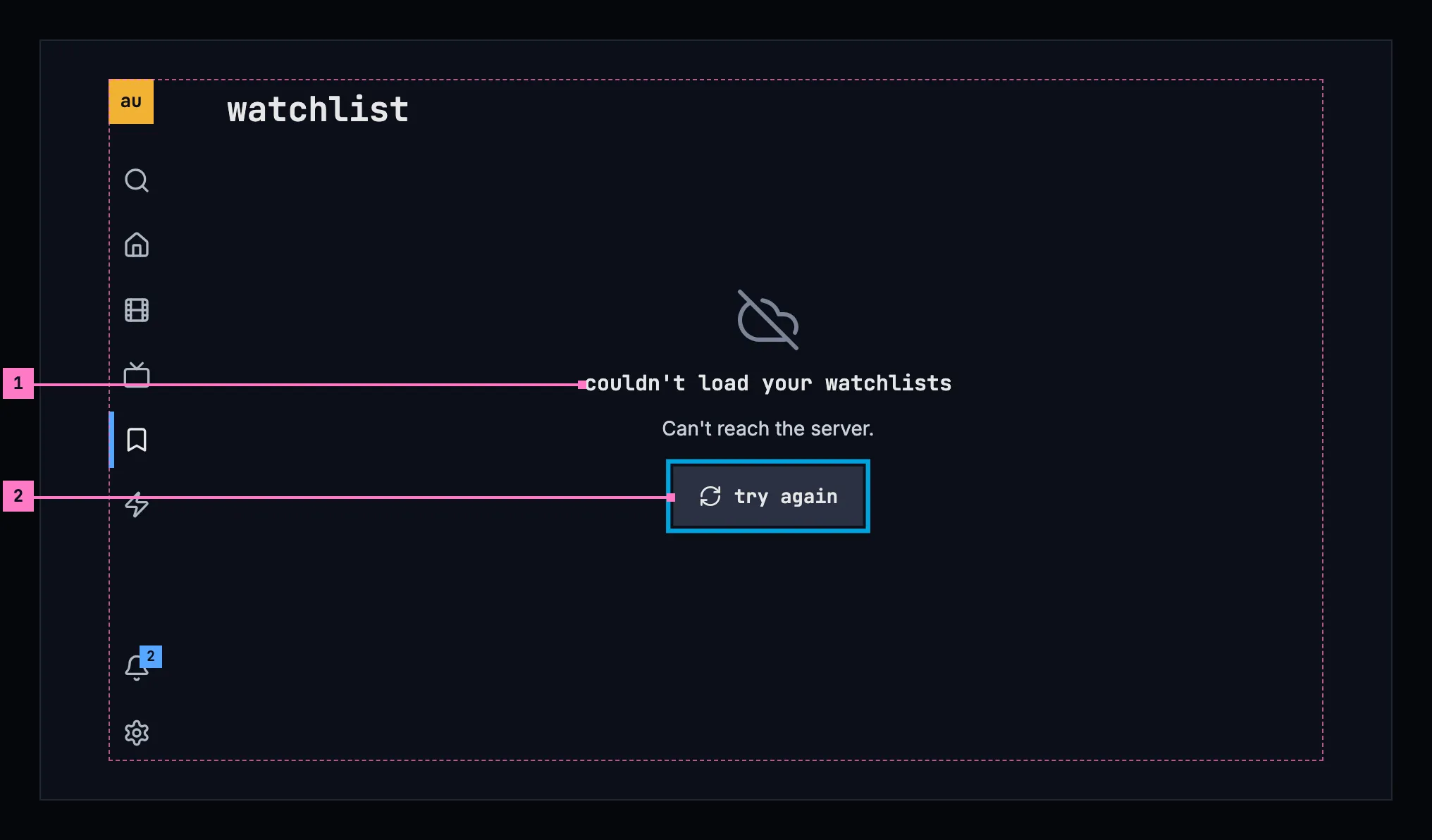
Figure 8.13: The watchlist when the lists couldn't load, on a TV.
- What couldn't load, and why. “couldn't load your watchlists”, and the reason under it; here the server didn't answer. Chapter 17 lists every cause and its sentence.
- try again takes the focus first and loads the lists again. create list comes back with them.
| State | What the watchlist shows |
|---|---|
| Loading | Nothing for the first 0.4 seconds, then grey blocks in the shape of two rows, a name over a line of posters, like the blocks of figure 5.12 (chapter 5) |
| The Watchlist empty, and no list of the person's own | Figure 8.12 |
| The Watchlist empty beside other lists | Its row says “Add titles with the bookmark on a title's page.” in place of its cards |
| A list of the person's own that is empty | Its row says “Add titles with the arrow beside the bookmark on a title's page.” in place of its cards; opened, the list shows “nothing in Sunday nights yet” over the same sentence |
| The lists couldn't load | Figure 8.13, with the sentence for the cause |
| One row couldn't load | That row says “couldn't load this list”, the reason and try again in place of its cards; the other rows show |
| An opened list couldn't load | “couldn't load this list”, the reason and try again under the heading |
| Asking again failed | The watchlist stays as it was, under the warning banner of chapter 17: “Couldn't refresh your watchlists; it shows what was loaded 4 minutes ago.”, with try again |
| The list was deleted on another device | The list's view goes back to the watchlist, which no longer has its row |
| The phone app can't reach the server | The banner of chapter 13, with the lists the phone loaded under it as they were; with none, figure 8.13 without the sentence, which the banner already says |
8.11 Words
Section titled “8.11 Words”| Where | Text |
|---|---|
| The view | watchlist · create list |
| A row's name | Watchlist · 5 · Sunday nights · 4 |
| The last card of a row | see all |
| A card | the name, the year and ⋮; an episode: the show's name and “S01E03 · Llamigos” |
| An empty row | Add titles with the bookmark on a title's page. · Add titles with the arrow beside the bookmark on a title's page. |
| A list | the back arrow, named “back” for screen readers · Sunday nights · 4 titles · 1 title · rename list · delete list |
| Creating and renaming | create list · rename list · Name · cancel |
| A name the dialog can't take | Give the list a name. · You already have a list called Sunday nights. |
| At the dialog's top | You have as many lists as an account can have. Delete one first. · Couldn't create the list. · Couldn't rename the list. · and the cause's sentence |
| Deleting | delete list · This deletes Sunday nights and can't be undone. Its 4 titles stay in the library and in your other lists. · Its title stays in the library and in your other lists. · cancel |
| Empty | nothing in your Watchlist yet · Titles you add with the bookmark on a title's page show up here. · nothing in Sunday nights yet |
| Couldn't load | couldn't load your watchlists · couldn't load this list · Can't reach the server. · try again |
| Asking again failed | Couldn't refresh your watchlists; it shows what was loaded 4 minutes ago. · try again |